Guide
Work order guide
Learn about work order sections, statuses, and how to create, complete, and reverse a work order.
Leer en español →Notice: This article describes features included in the Cosecha plan. Some features may not be available to users on the Semilla or Cultivo plans. Compare plans.
Work orders are the gears that drive the entire system: they put all the information already entered in Aragro to use.
There are different types of work orders, linked to the activity categories in Aragro. This guide focuses on the anatomy of a work order—that is, the sections it may contain. The sections change depending on the type of work order.
When you create a work order for an activity, Aragro asks for the sections specific to that activity or task, such as whether it requires machinery or inputs.
Create a work order
Section titled “Create a work order”To create a work order, click “Create new.”

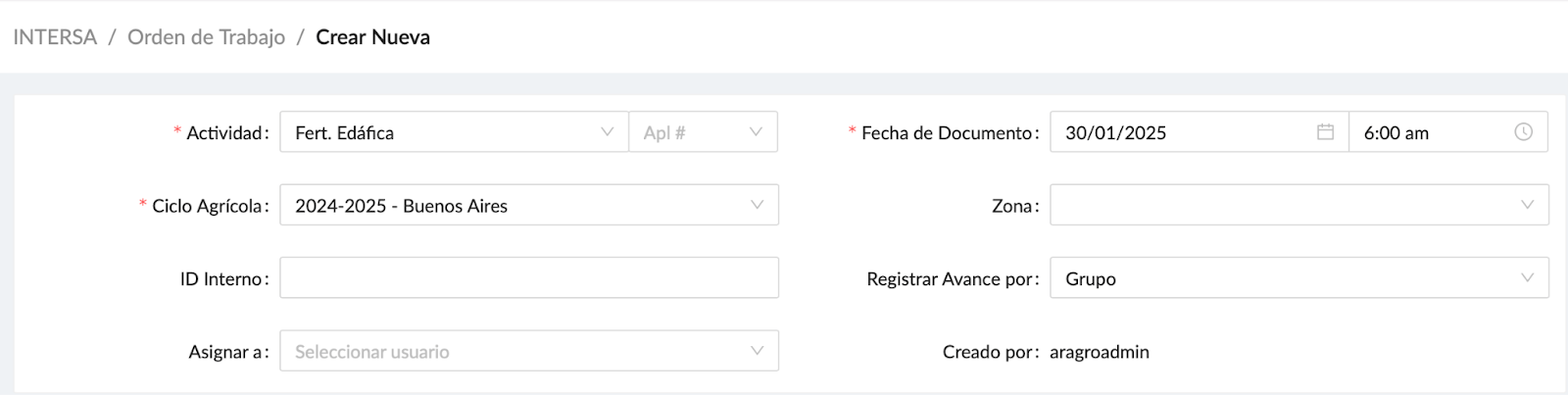
Next, fill in the following fields:
- In Activity, select the desired activity. If the selected activity tracks the number of applications, the Application # option is enabled beside the activity so you can enter its application number in the work order.
- In Document date, select the date and, optionally, the time. The time is optional, but the date is required.
- Crop cycle shows cycles created previously. You can also create a crop cycle from “+ New crop cycle” in the drop-down menu.
- Zone is optional if your farm is divided into zones.
- Internal ID is optional; you can assign one to the work order. The platform generates an ID for every work order, and you can also assign an internal ID as needed.
- Record progress by is optional and can be set according to how you want to record progress on the work order.
- Assign to is optional. It creates a work order for a specific user as if that user had created it.
Work order sections
Section titled “Work order sections”Each work order has sections enabled according to the selected activity. A work order may contain the following sections.
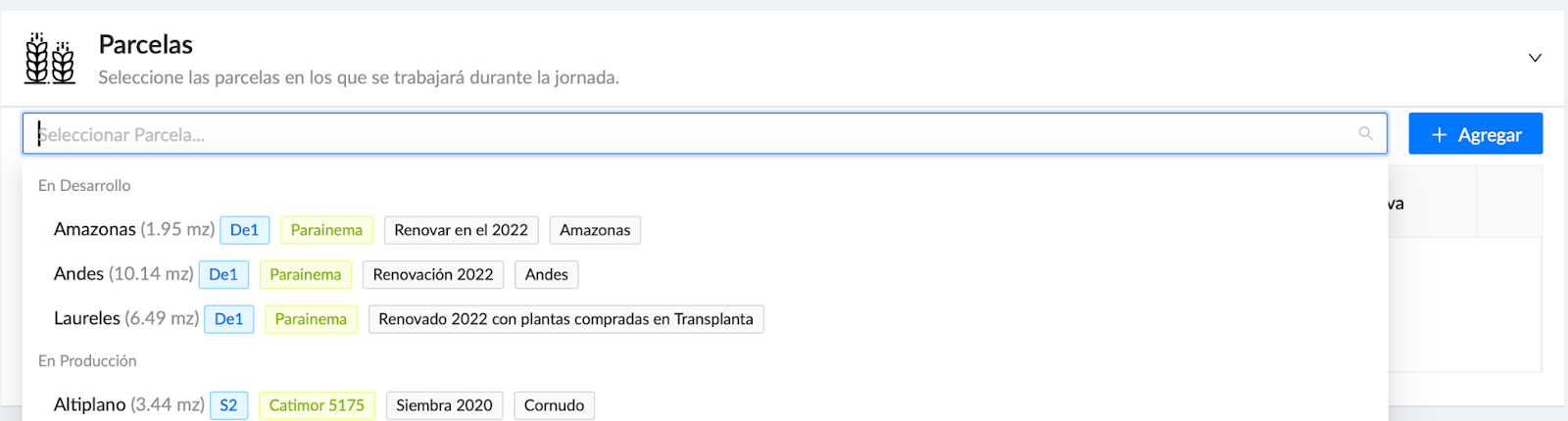
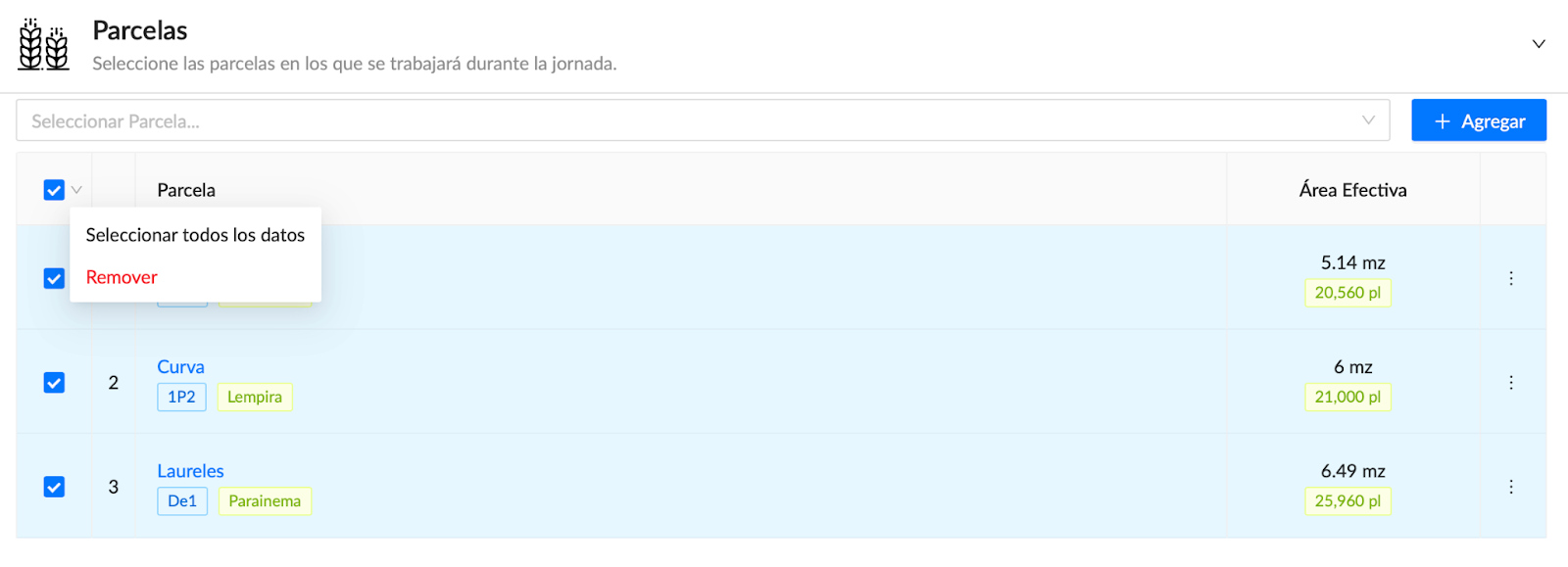
- Select one or more plots where the activity in this work order will be performed.
- After selecting the plots, click “+ Add.”

Workers
Section titled “Workers”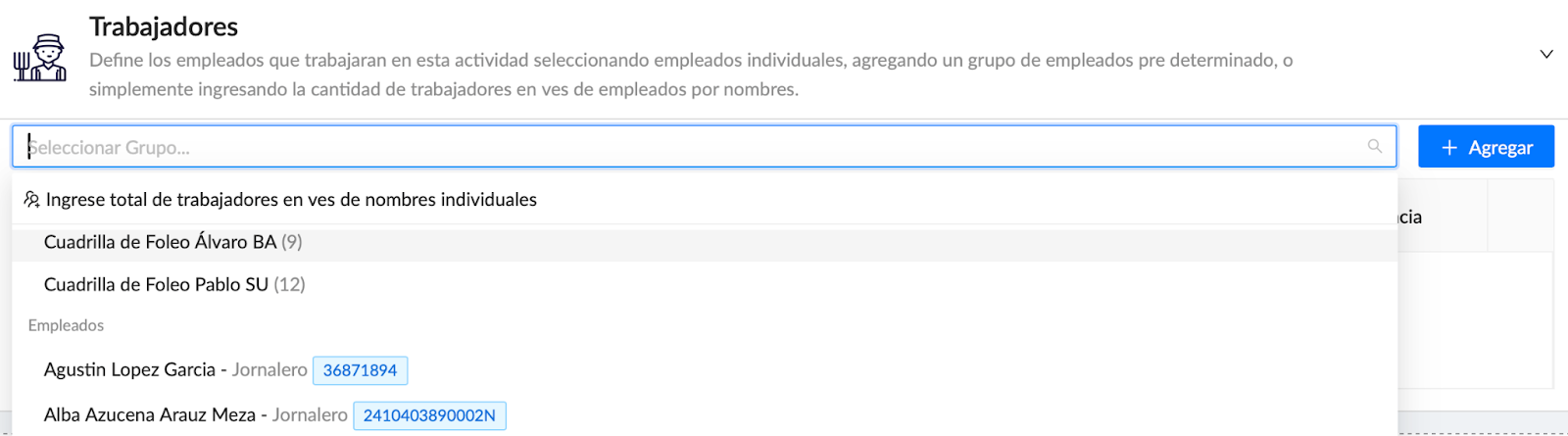
Workers can be added to a work order in several ways:
- By employee name.
- By group.
- By number of employees.
- By job position.
Select the workers who will be part of the work order, then click “+ Add.”
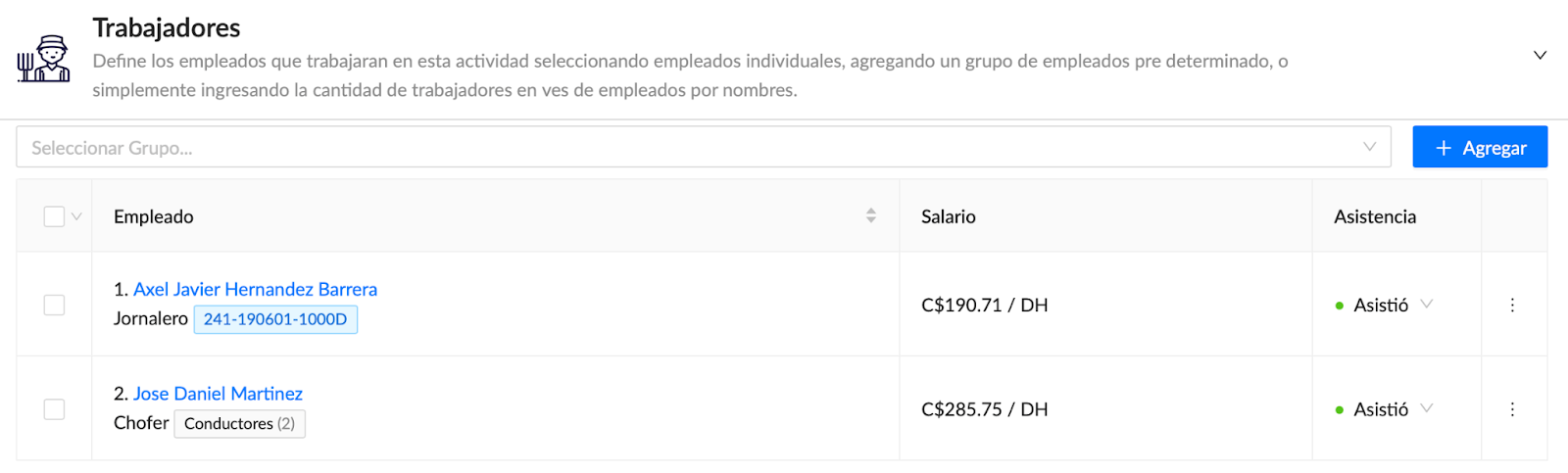
If you have temporary or contract workers, you can enter the total number of workers who will perform the activity and the labor cost without recording their names:
- In Workers, select “Enter total number of workers instead of individual names,” as shown below.
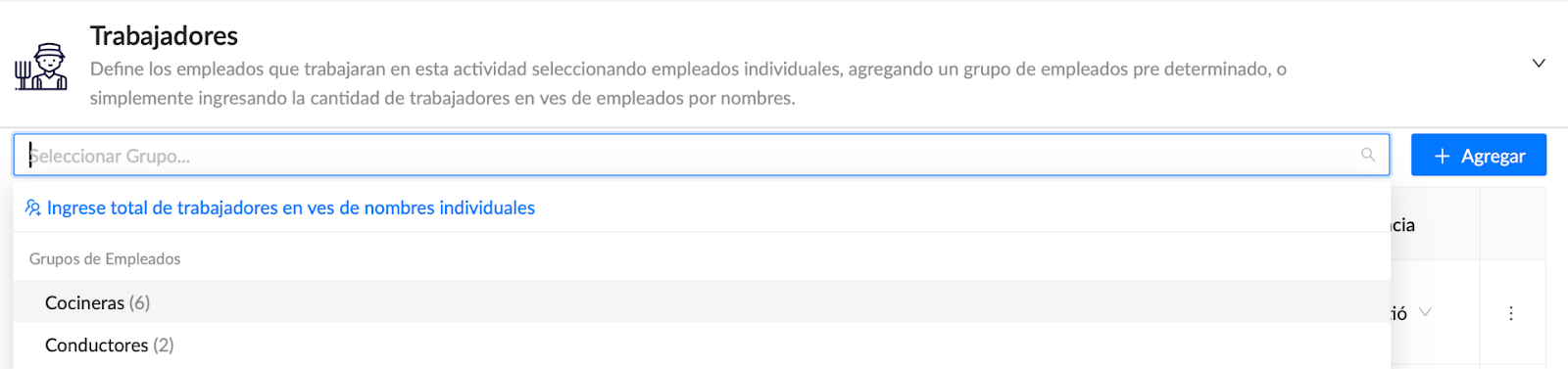
- Then enter Total workers and the Salary per worker. Aragro automatically calculates Labor cost. For example:

Fleet and machinery
Section titled “Fleet and machinery”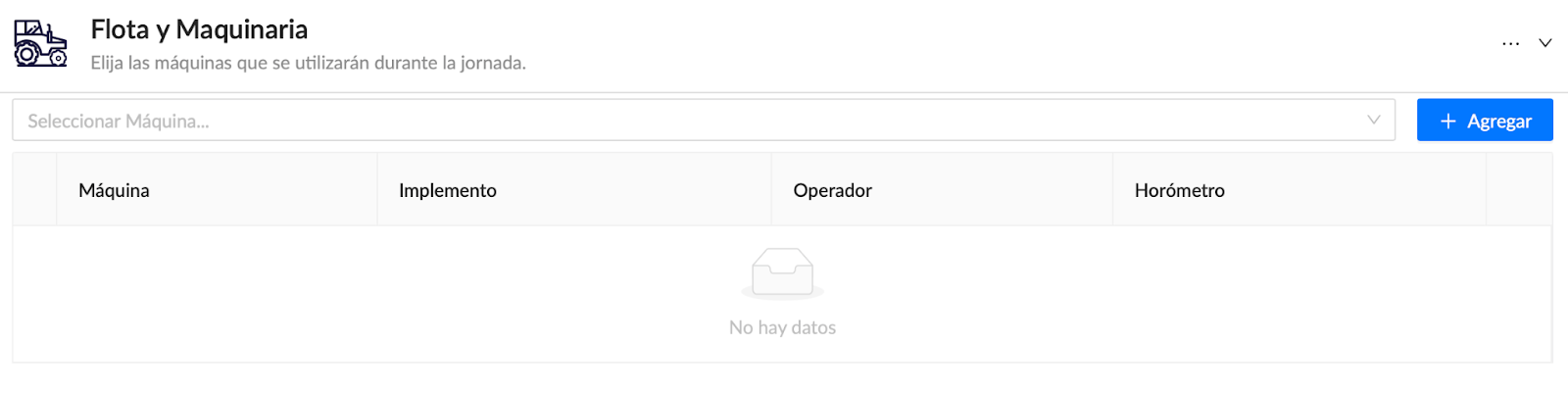
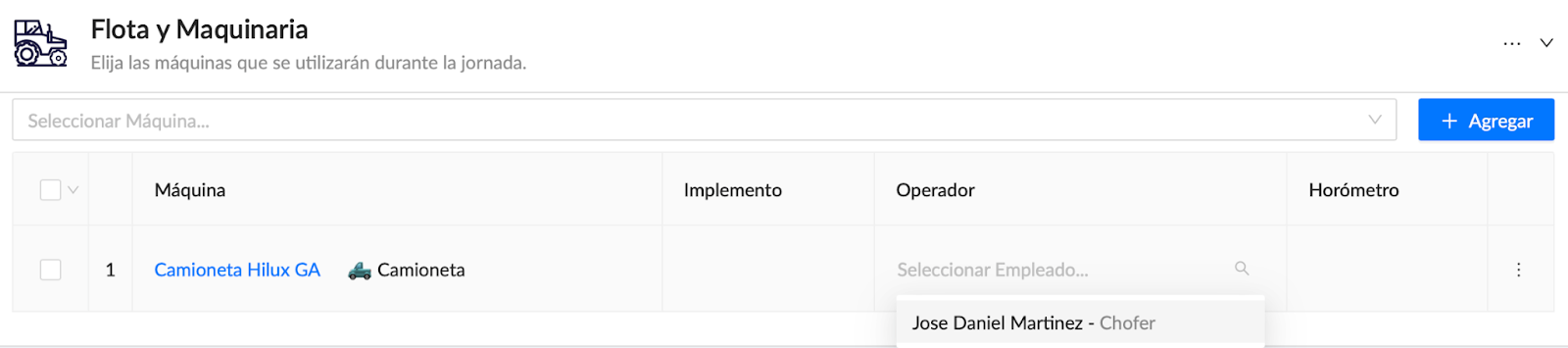
In this section, select the machinery to use in the work order, then click “+ Add.”
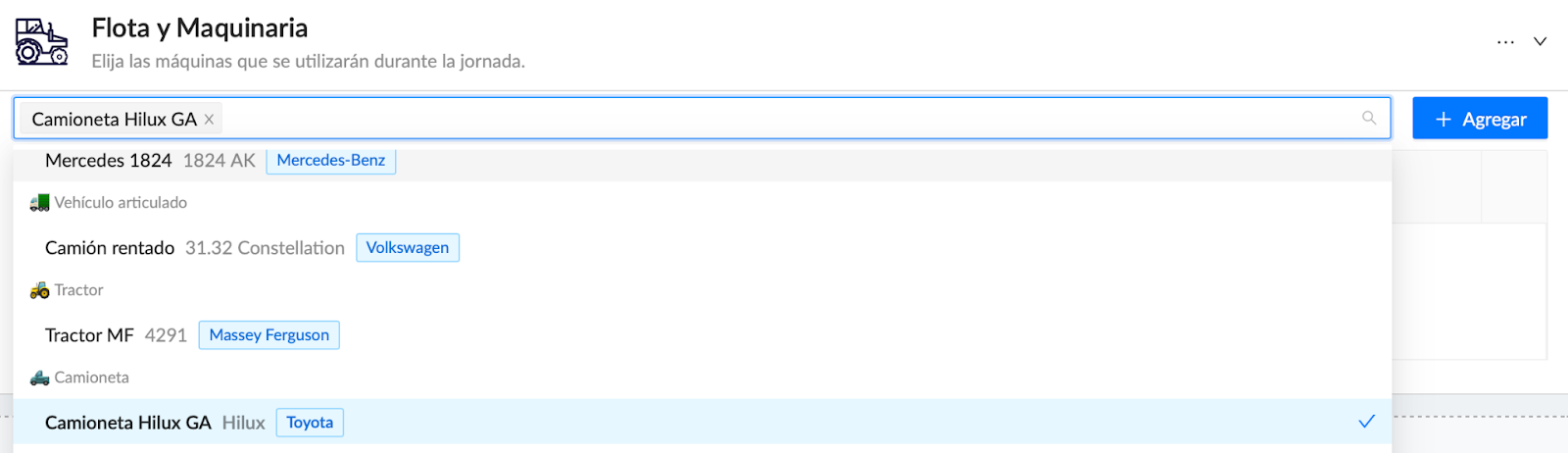
If the machinery requires a driver or operator, that employee must be included in the employee list. For example, the employee “Jose Daniel Martinez” has the job position “Driver,” which is why he appears as “Operator” in the drop-down list.
Inputs
Section titled “Inputs”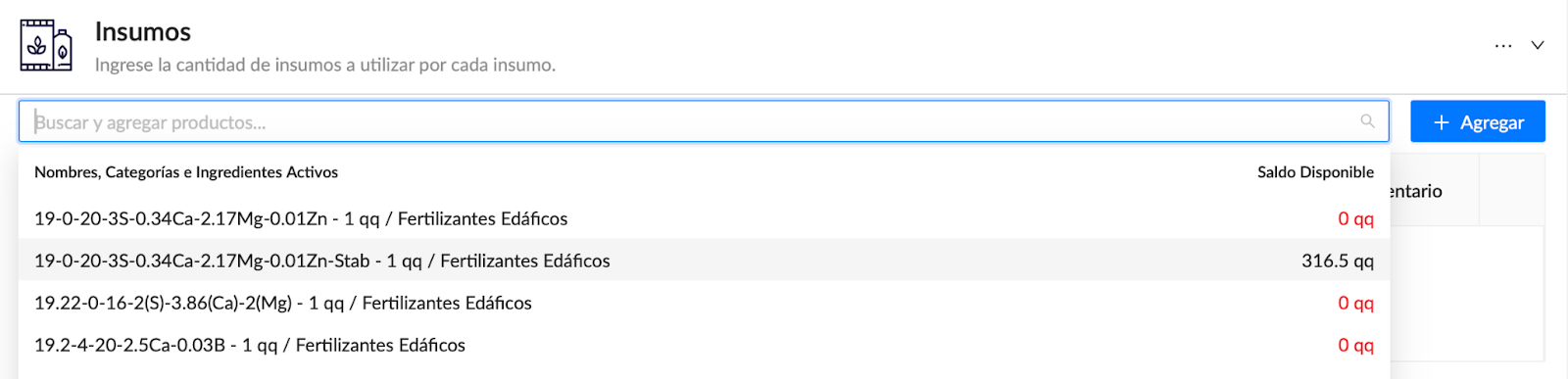
In this section, select the inputs to be used for the activity in the work order. Aragro shows the available balances recorded in the system.
After selecting one or more products, click “+ Add.”
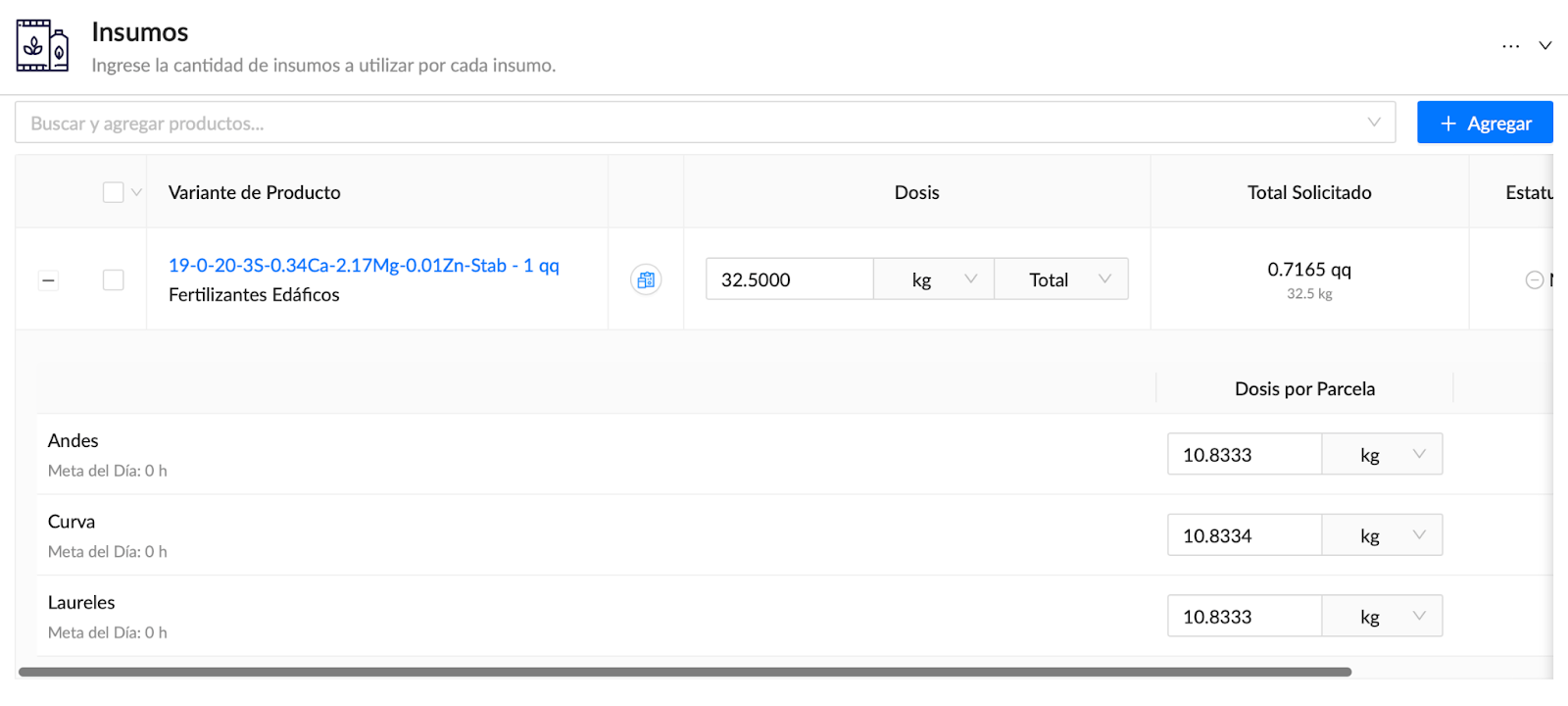
Once a product has been added to the work order, you can change its dose and the corresponding unit of measure, adjust its total as needed, and set the quantity of input to be used on each plot if the activity covers multiple plots, as shown below.
Comments
Section titled “Comments”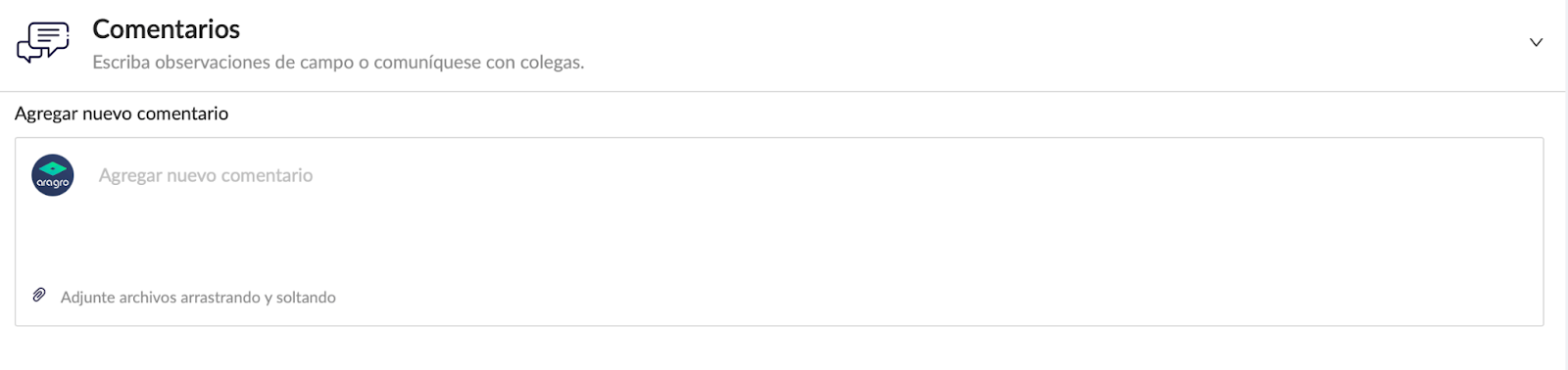
In this section, you can add comments and attach any files from your computer, if needed.
As a final step, after entering all the necessary information in the work order, click “Start work order.”

Work order statuses
Section titled “Work order statuses”This action changes the work order’s status. A work order can have different statuses:
- Draft: The initial status. You can cancel the work order while it is in this status.
- In progress: The work order has started. Here you enter what actually happened in the field once the activity has been performed or completed. You can cancel the work order while it is in this status.
- Completed: The work order is complete and contains the actual progress information. You cannot cancel it in this status; you can only reverse it.
The work order status appears in the upper-right corner, as shown below:

Complete a work order
Section titled “Complete a work order”To complete a work order, update the sections you filled in earlier, as shown below.
Workers
Section titled “Workers”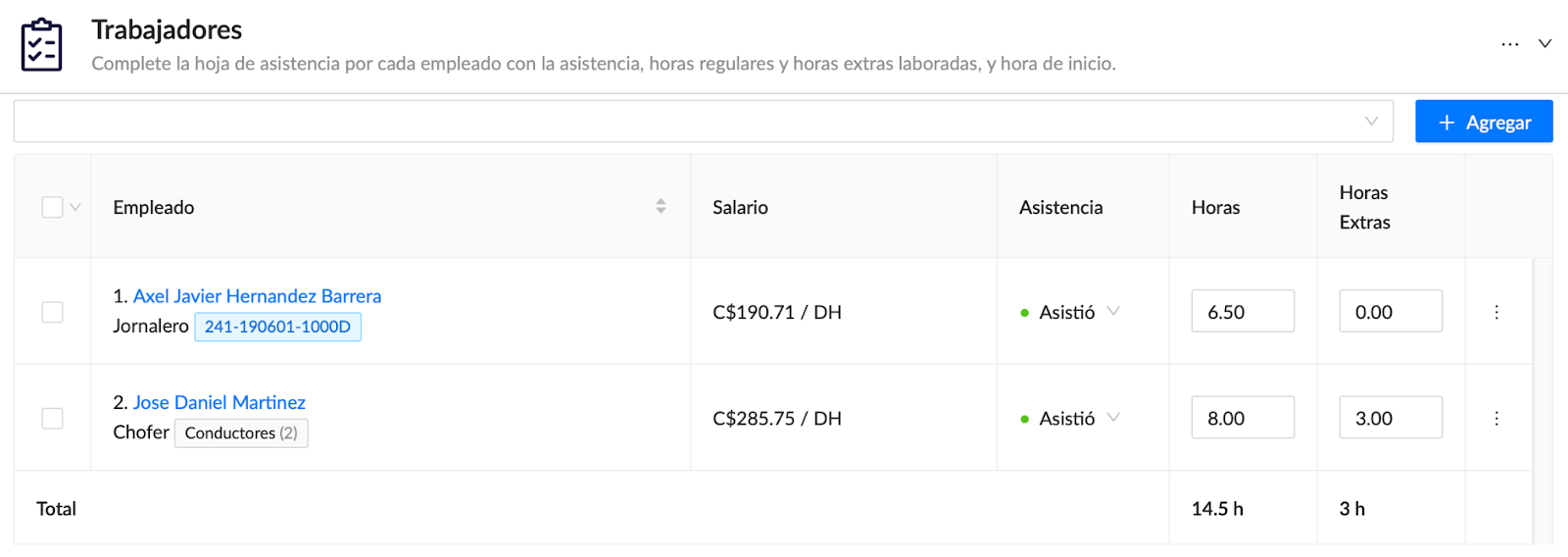
- Mark whether the worker attended their work shift.
- Enter the hours the worker spent on the activity.
- If needed, enter each worker’s overtime hours.
Machinery
Section titled “Machinery”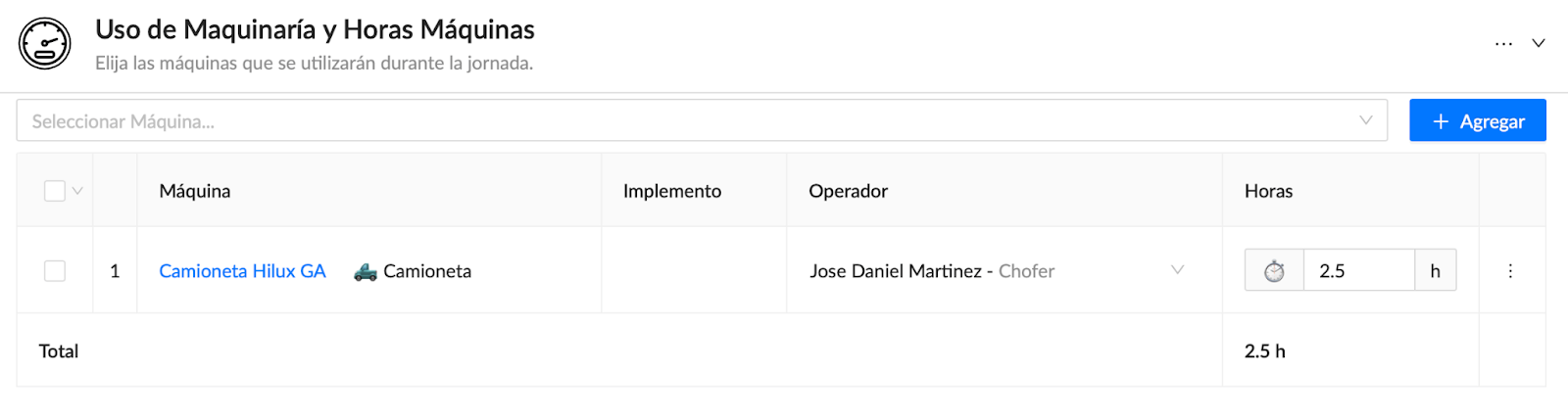
If applicable, enter the Hour meter and Odometer readings for the machinery listed in the work order.
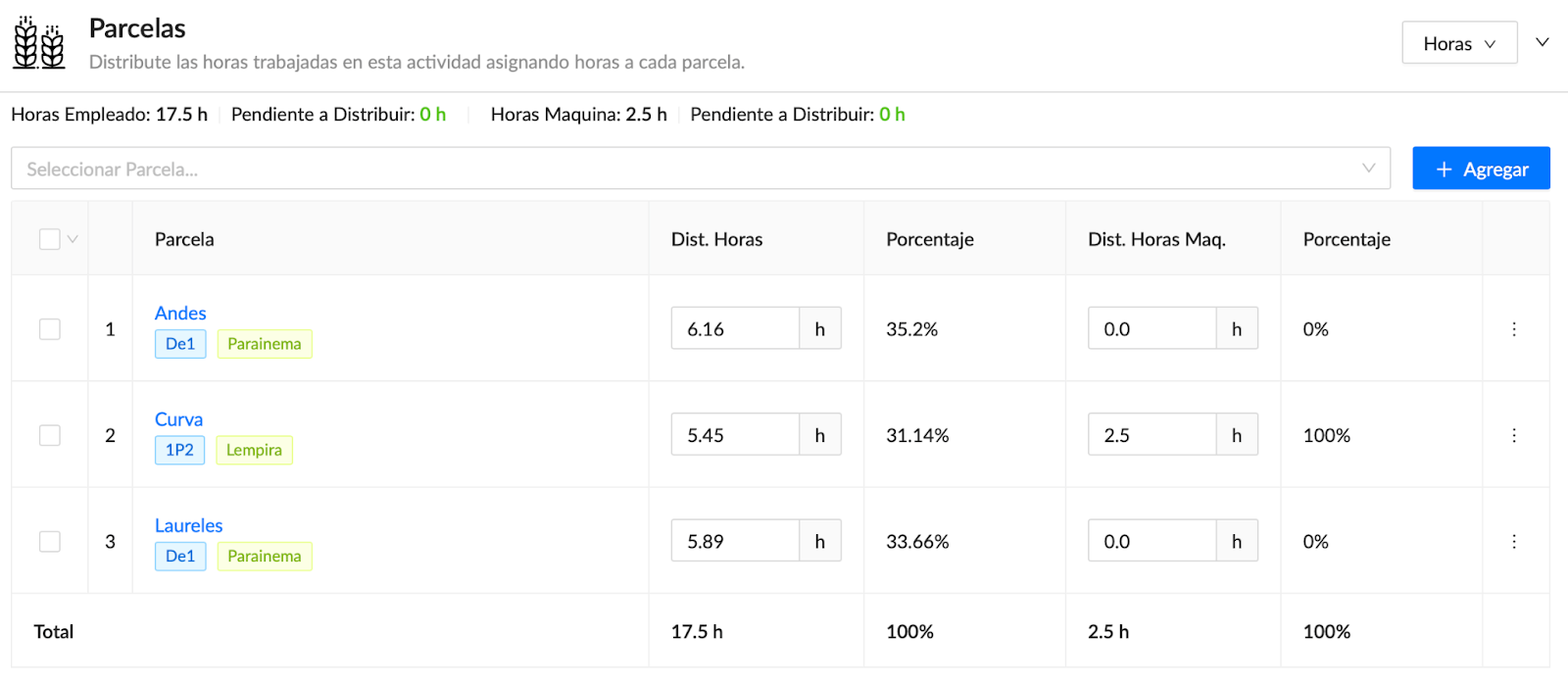
Enter information in the columns whose fields can be edited. In this example, these are:
- Hour distribution (Dist. Horas)
- Machine-hour distribution (Dist Horas Maq)
Inputs
Section titled “Inputs”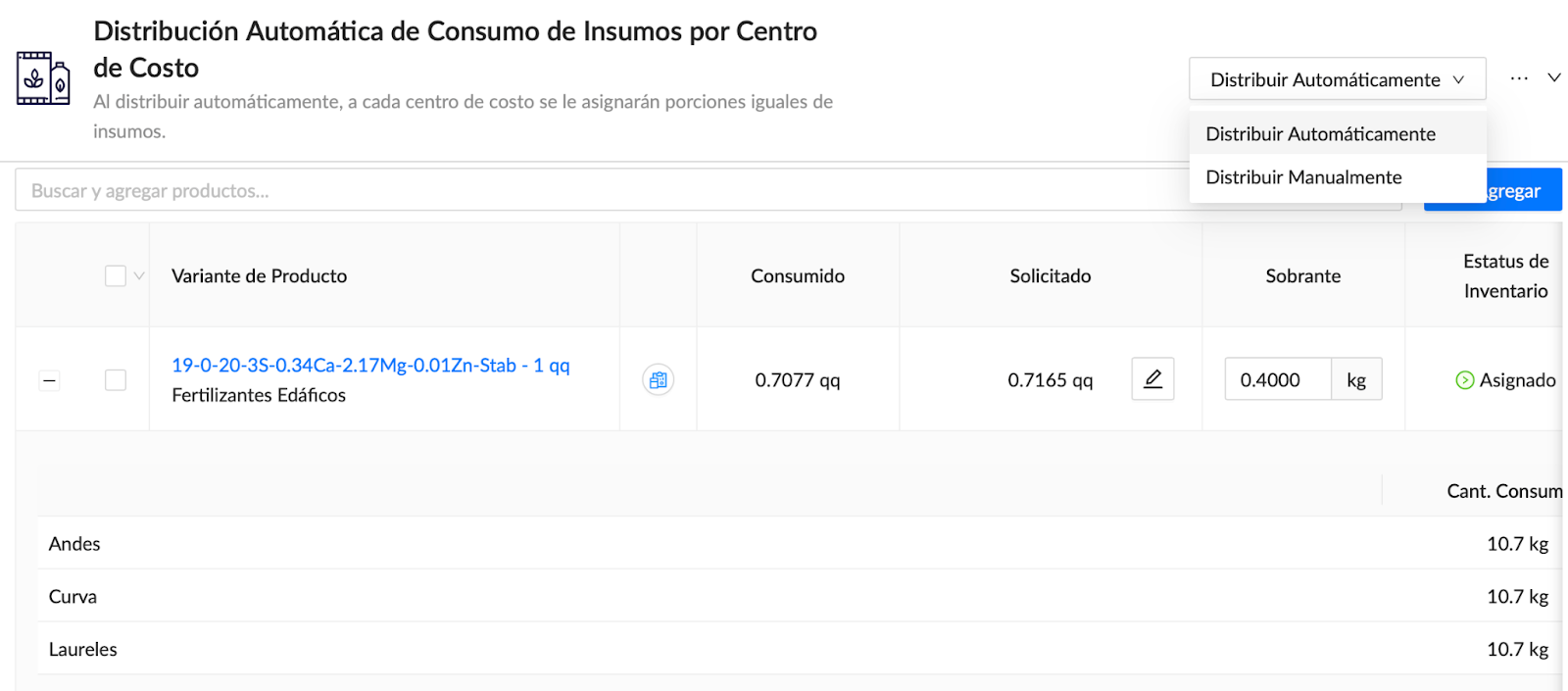
This section is important because it lets you allocate the inputs used in the field automatically or manually. You can distribute consumption evenly across plots, or allocate it manually to track actual consumption on each plot in more detail.
Update the Remaining column with the correct information; otherwise, continue to the next step.
Finally, when you have finished entering the information, click “Complete work order.”

Reverse a work order
Section titled “Reverse a work order”You can reverse a work order if necessary. This cancels the activity, and any inputs listed in the work order are returned to their original location.

If needed, you can get a physical copy of the work order by selecting “Download field report.” This creates a PDF with all the information in the work order so you can handle or store it outside Aragro.

If you have a question this guide does not answer, contact us in the Aragro chat and we will be happy to help.