Guide
Transfers guide
Record product transfers between warehouses and review each transfer’s status.
Leer en español →Notice: This article describes features included in the Cosecha plan. Some features may not be available to users on the Semilla or Cultivo plans. Compare plans.
In the Transfers module under Inventory, you can record product transfers from one warehouse to another, including the quantity, responsible person, date, and transfer status.
This helps you track the movement of products on your farm more directly and efficiently.
Steps to record a transfer
Section titled “Steps to record a transfer”- Find Transfers in the Inventory module in the left sidebar, or in the general menu at the upper right.
-
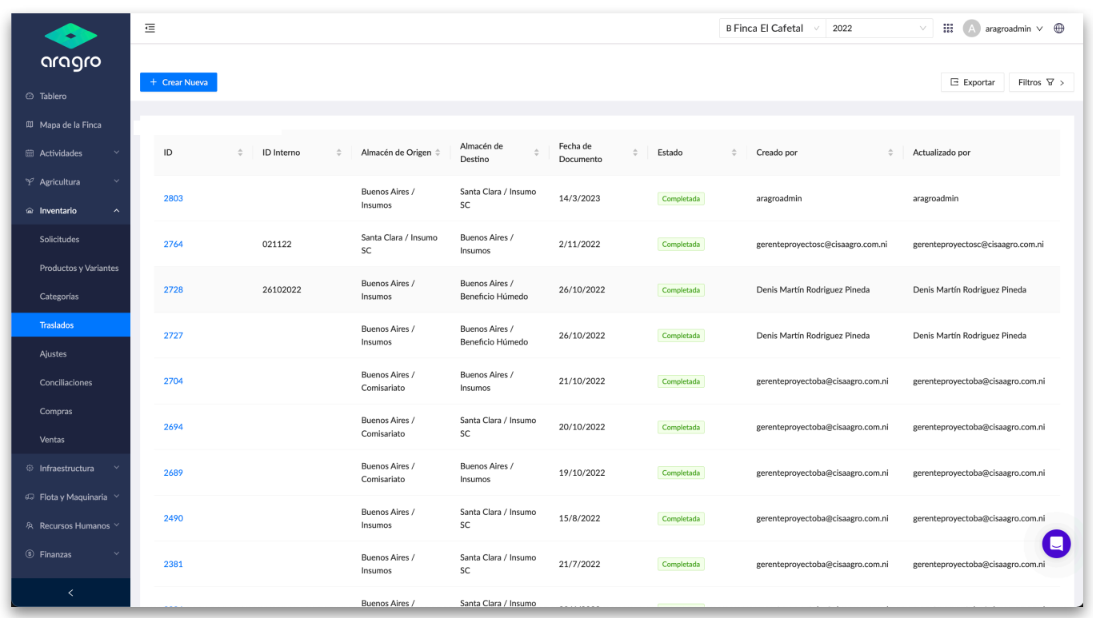
The initial view shows the list of recorded transfers: https://app.aragro.com/inventory/transfers.
- Source warehouse: The warehouse the product variants leave from.
- Destination warehouse: The warehouse that receives the variants.
- Status: Open, completed, or canceled.
-
In Transfers, you can create a transfer, edit a record, export files, or filter the list.
a) Create a transfer
Section titled “a) Create a transfer”Click the blue “+ Create new” button to open a form. Complete the basic information and click Create; the transfer should appear in the list.
To create a transfer, enter the document date (the transfer date), select a source warehouse (where the products leave from), and a destination warehouse (where they will be received).
In Inventory details, a list shows all products in the source warehouse and their current stock. Select one or more products and click + Add. In the list, enter the quantity to transfer; it must be greater than 0.
You can add transfer-related details in the Notes section.
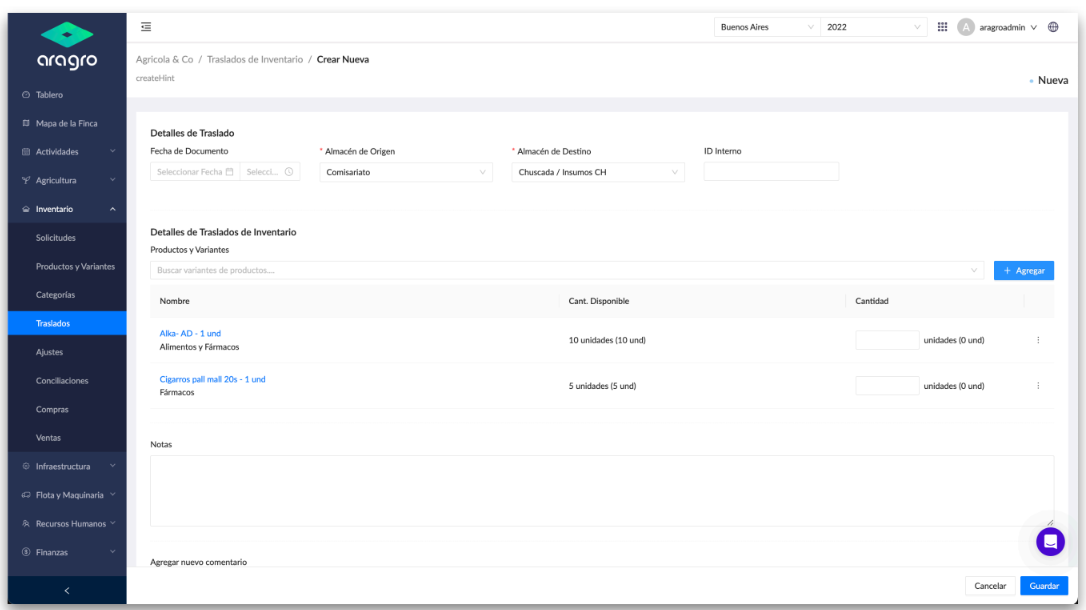
Note: Fields marked with an asterisk (*) are required to continue to the next step.
There is also an optional Comments section where you can add comments and tag users of the system.
After entering the information, save the transfer. Aragro will take you to a details page where you can review the transaction. At this point, you can edit the transfer by removing or adding products and changing quantities. When you are sure the transaction is correct, click Complete transfer. The transaction is executed when you complete it.
b) Edit a record
Section titled “b) Edit a record”Select the ID of the record you want to edit. A menu will appear on the right, with a pencil icon at the upper right.
Editing activates all fields available for changes: date, warehouses, and product list.
c) Export
Section titled “c) Export”You can export transfers in two formats: Excel (.xlsx) and comma-separated (.csv). After you select a format, the export starts automatically.
d) Filters
Section titled “d) Filters”You can filter by nearly every column in the list, including the option at the end to show deleted records.
If you have a question this guide does not answer, contact us in the Aragro chat and we will be happy to help.