Guide
Expenses
Record and review other farm business expenses using expense orders.
Leer en español →Notice: This article describes features included in the Cosecha plan. Some features may not be available to users on the Semilla or Cultivo plans. Compare plans.
A work order is a powerful tool for entering the work done on your farm each day and the use of internal resources such as labor, machinery, and inputs. However, an agricultural business has other expenses that must be recorded to provide a complete picture of the costs for the crop cycle.
Expense orders give users a simple way to enter expenses such as electricity bills, service payments, administrative expenses, and more. To record other expenses, you will use these pages in Aragro:
- Expense categories
- Expense items
- Expense orders
The following steps explain each process for recording other expenses.
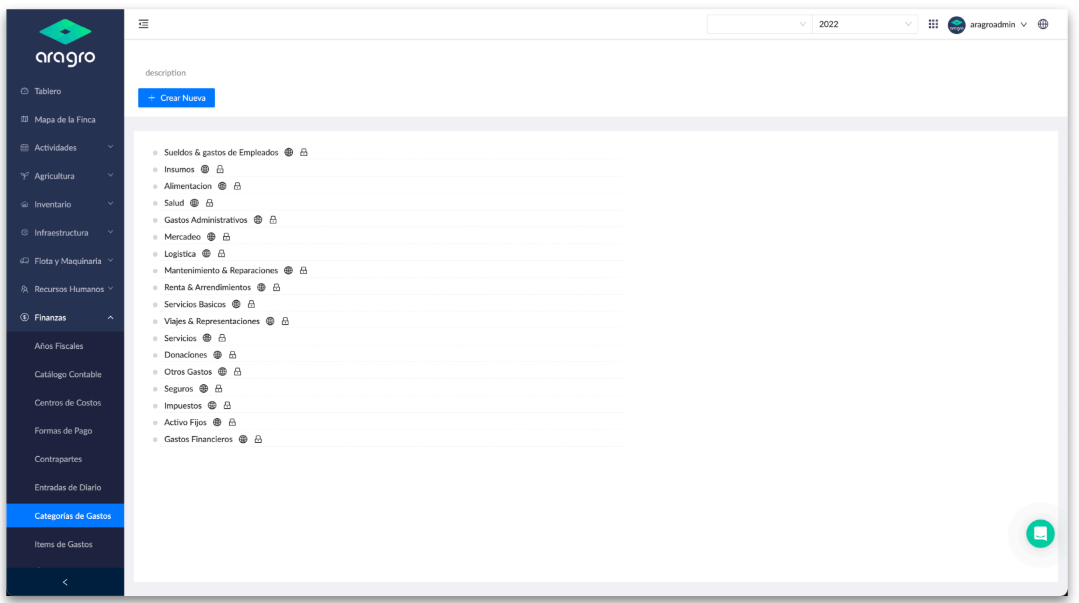
1. Review and create expense categories
Section titled “1. Review and create expense categories”https://app.aragro.com/finance/expense-categories
- Aragro preloads categories you can use if you wish. These categories cannot be edited or deleted.
- To create a category, click “+ Create new.”
- Complete the form with the category name and, if it is a subcategory, its parent category.
- Customers who use the accounting module can assign accounting accounts to each expense category.
- When journal entries are created, expense items linked to a category use the accounting accounts configured for that category.
2. Review and create expense items
Section titled “2. Review and create expense items”https://app.aragro.com/finance/expense-items
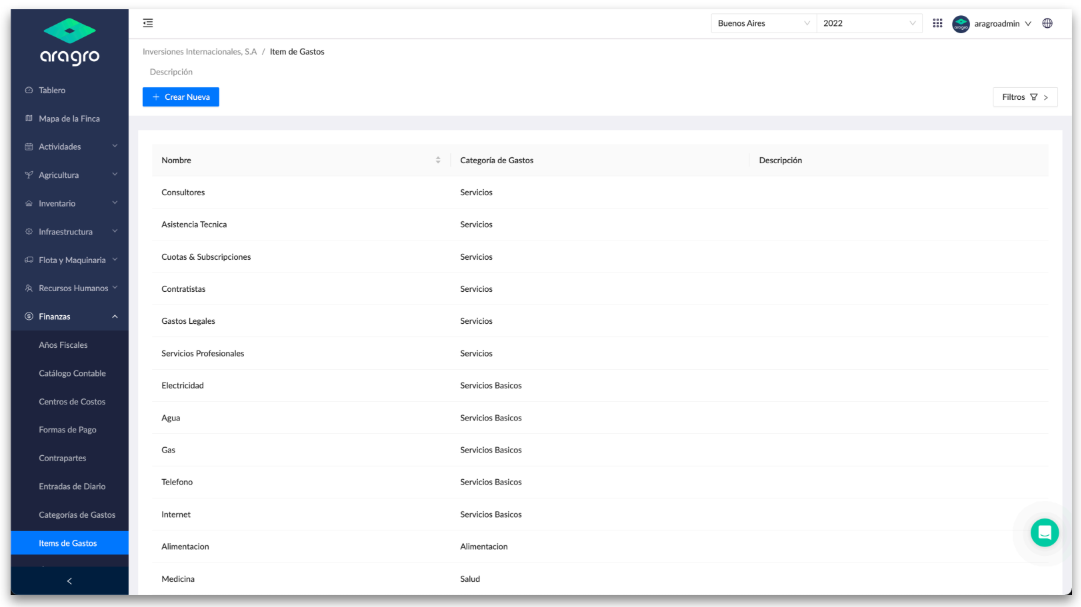
- Aragro preloads expense items related to the preloaded categories, which you can use if you wish. You can edit these items, change their category, or delete them.
- To create a new expense item, click “+ Create new.”
- Complete the form with the item name and link it to an expense category.
3. Record other expenses with an expense order
Section titled “3. Record other expenses with an expense order”https://app.aragro.com/finance/expense-orders
- To create a new expense item, click “+ Create new.”
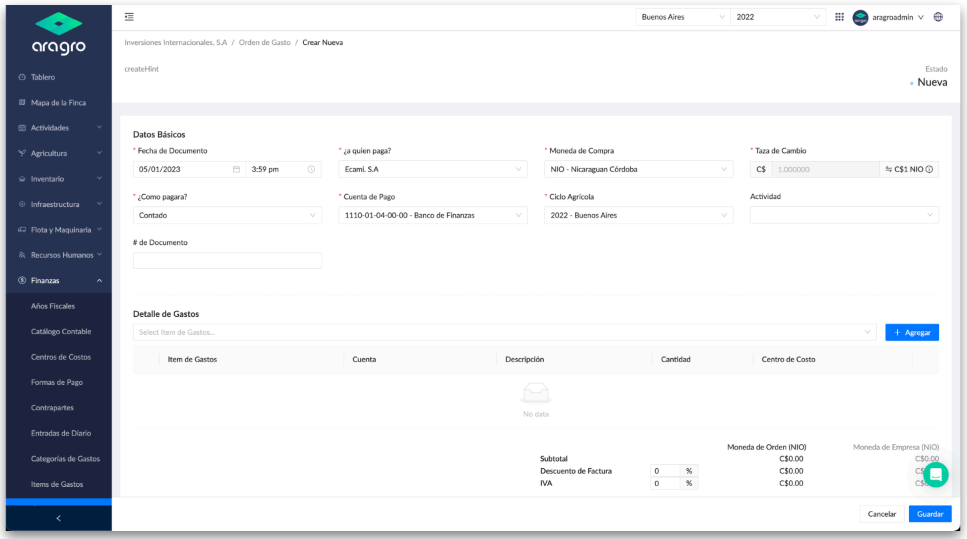
- After completing the header fields:
- Document date: The date the expense was incurred or the invoice date.
- Who will be paid?: Indicate who will receive payment for the expense or service. The supplier must already exist in order to select them.
- Choose the currency in which the expense or payment was made.
- How will you pay?: Indicate whether the payment is cash or credit.
- Crop cycle: Choose the crop cycle to which the expense will be charged.
- Activity: Optionally, link the expense to an activity.
- Document number: Invoice, contract, or reference number.
- Complete the expense details:
- Choose the expense items to record.
- Description: Optionally, enter a description.
- Quantity: Enter the expense amount.
- Cost center: Indicate the cost center to which the expense will be charged.
- Add a discount, freight, or VAT, if applicable.
- Save the expense order, review it, then complete it.
d. View expenses
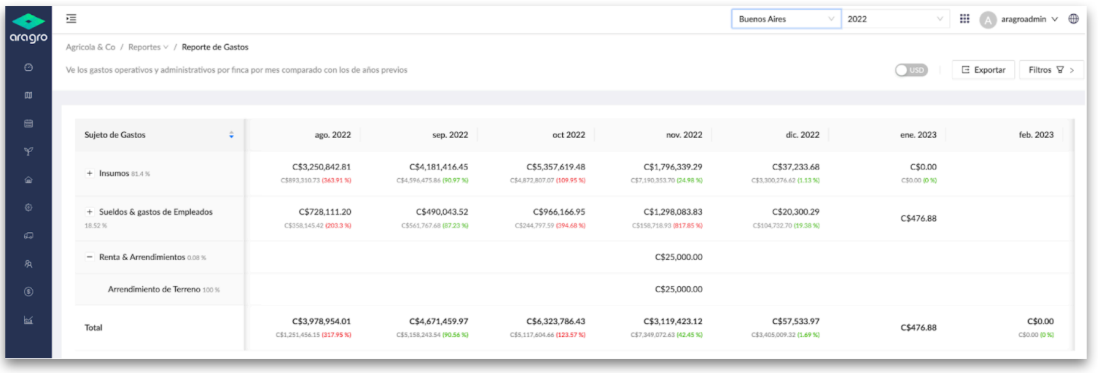
Section titled “d. View expenses”- Using the Expense report:
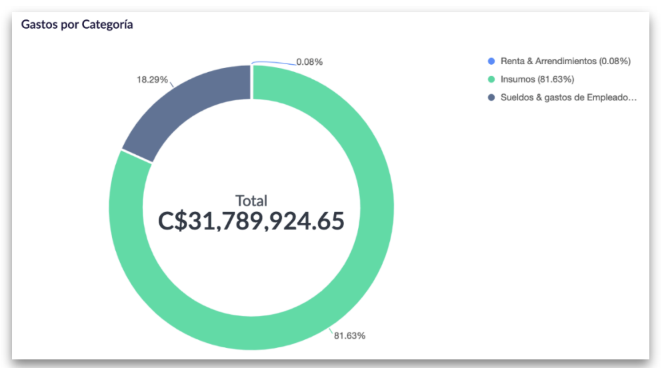
- Using the dashboard under “Expenses by Category”:
If you have a question this guide does not answer, contact us in the Aragro chat and we will be happy to help.