Guide
Purchase orders
Record purchases, receive products into a warehouse, and manage accounts payable.
Leer en español →Notice: This article describes features included in the Cosecha plan. Some features may not be available to users on the Semilla or Cultivo plans. Compare plans.
Aragro provides purchase orders to help you buy inputs from different suppliers, record purchases, receive products into the desired warehouse, and manage accounts payable. Purchases can be entered in different currencies, with an exchange rate applied to the purchase.
The following steps explain how to make a purchase.
Follow these steps to create a purchase order.
- Before creating a purchase order, we recommend:
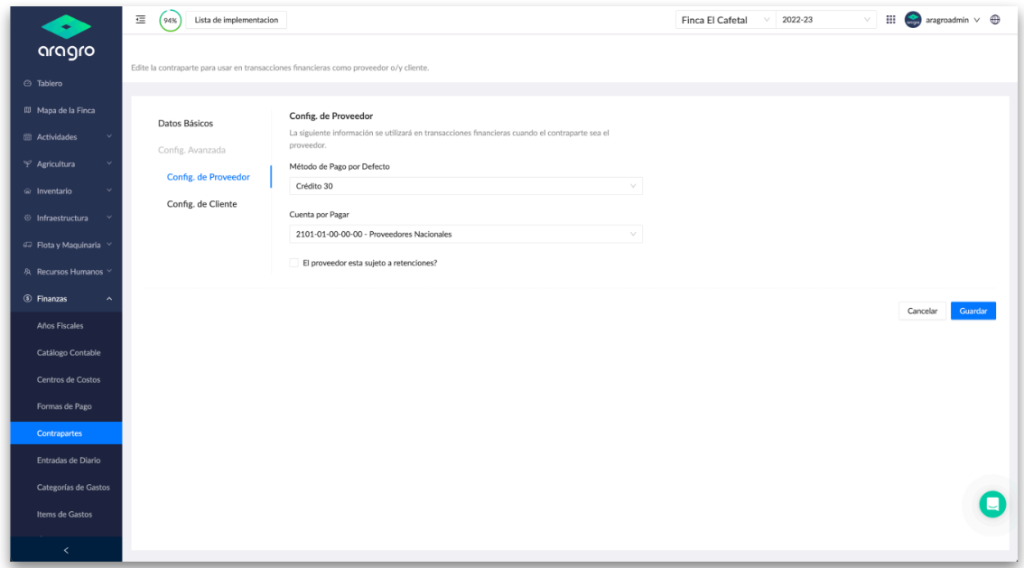
- Review your suppliers and their settings in Counterparties in the Finance module: https://app.aragro.com/counterparties.
- For each counterparty, open it for editing and find Supplier configuration. Set the default payment method, the associated accounts payable account, and whether the supplier is subject to VAT and/or withholding taxes.
- On the Purchases page in the Inventory module (
https://beta.aragro.com/inventory/purchases), click the blue “+ Create new” button. Complete Basic data and Purchase details.
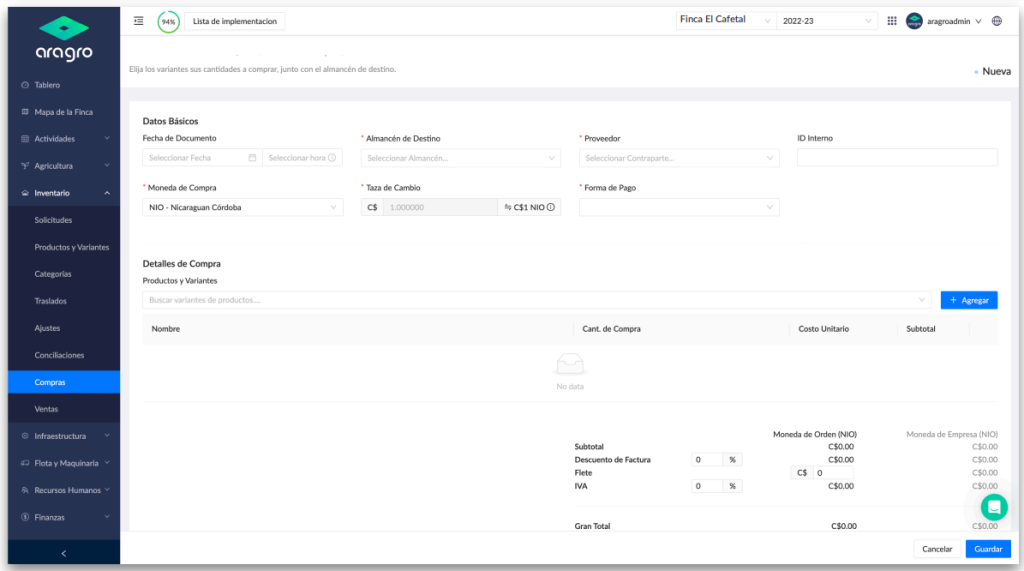
Note: Fields marked with an asterisk (*) are required to continue to the next step.
In Purchase details, search for and select the products you want to buy, then add them to the list. Enter the purchase quantity and unit cost for each product.
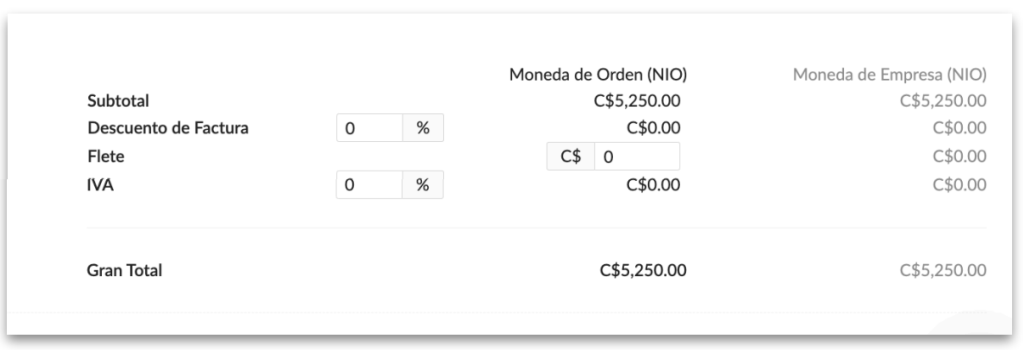
At the bottom, a summary shows the purchase total. You can enter a discount, freight, and applicable VAT.
-
After completing the form, click Save to create the purchase order. After reviewing it, you can complete the purchase. This automatically receives the products into the selected warehouse and creates an invoice payable if the purchase was on credit.
-
After completing the purchase, you can see the products received into the warehouse in the Inventory movements report: https://app.aragro.com/reports/inventory-movements?filter=%7B%7D. You can also check warehouse stock in the Inventory balances report: https://app.aragro.com/reports/stock.
-
You can see what is owed to each supplier in the Accounts payable report: https://app.aragro.com/reports/accounts-payable. To pay an invoice, go to the Invoices and payments module: https://app.aragro.com/finance/invoices.
If you have a question this guide does not answer, contact us in the Aragro chat and we will be happy to help.