Guide
Inputs
Organize farm inputs into categories and register products and variants.
Leer en español →Notice: This article describes features included in the Cosecha plan. Some features may not be available to users on the Semilla or Cultivo plans. Compare plans.
Efficiently managing inputs is essential to farm operations. Inputs account for a significant part of a farm’s costs and logistical effort. From purchasing inputs to using them, it is important to classify them so you can organize them from storage through costing.
This guide explains how to create and classify products.
Input classification has two parts:
- Inventory categories
- Products and variants
Inventory categories
Section titled “Inventory categories”Inventory categories group products of the same type, such as Fungicides. In some cases, categories can have subcategories to classify inputs.
For example, Agricultural inputs may have subcategories such as Herbicides, Fungicides, and Fertilizers. Each product must be associated with a category.
Before creating products and variants, review the categories preloaded in the system on https://app.aragro.com/item-categories. You can also find the categories page by clicking Categories on the Products and Variants page or in the Administration menu at the upper right of the app.
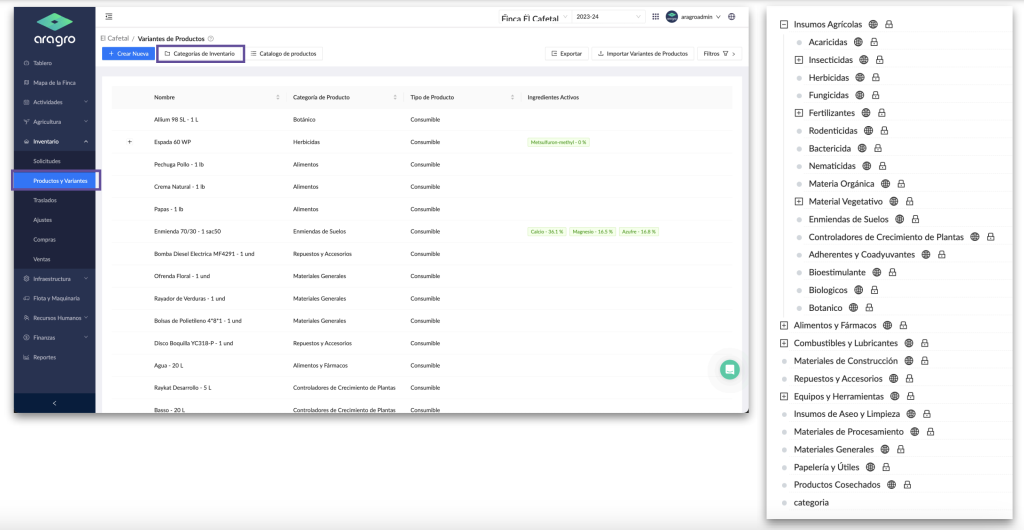
If you cannot find the category you need, you can create additional categories and subcategories as follows.
a) Create new
Section titled “a) Create new”
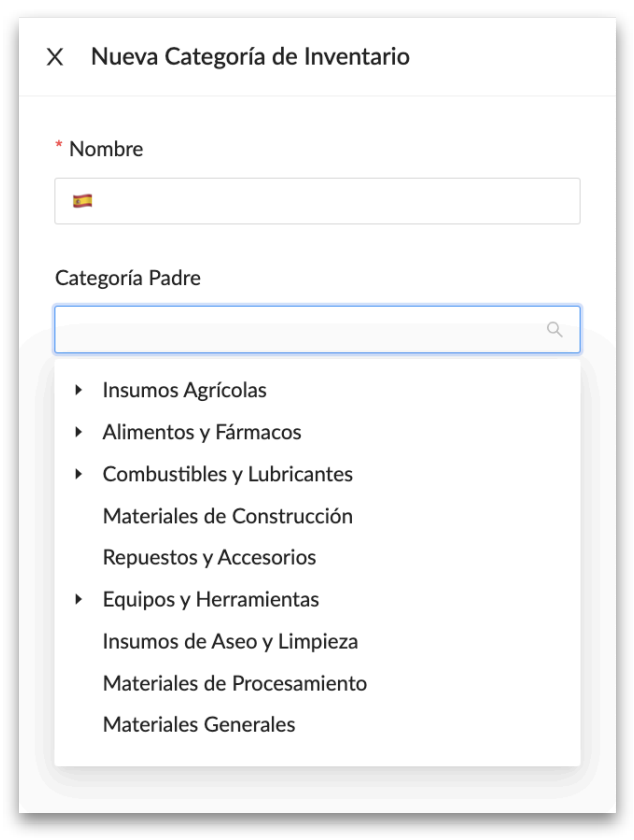
To create a new category or subcategory, click the blue “+ Create new” button. A form opens in a panel on the right. Complete the form fields, then click Create to create the category.
- Name is the name you want to give the category.
- Parent category: Leave this field empty to create a parent category. Select a category to create a subcategory under it.
b) Import
Section titled “b) Import”To import categories using an Excel template, see the import manual.
Products and variants
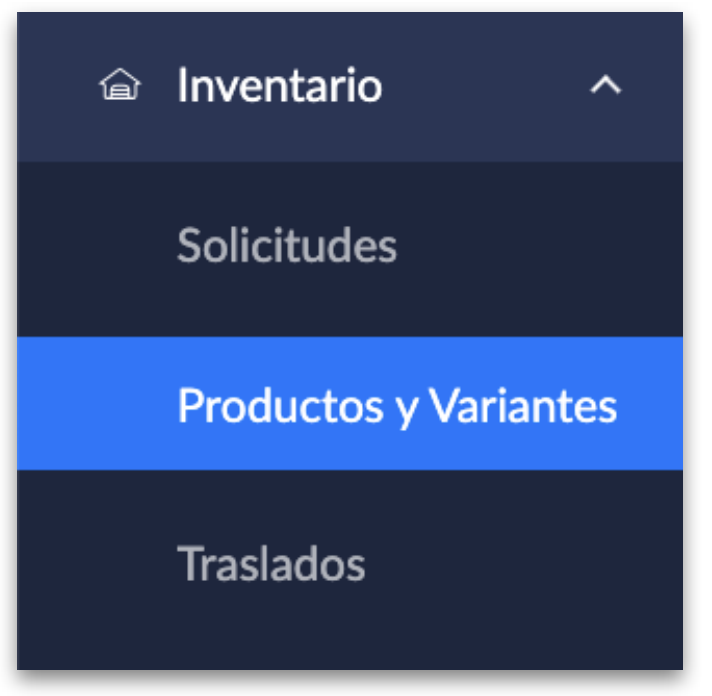
Section titled “Products and variants”Products and variants are inventory items that represent the inputs used on your farm. Each product and variant has a balance and unit cost. You can find Products and Variants in the Inventory module in the left sidebar or in the Administration menu at the upper right: https://app.aragro.com/items.
There are three ways to create products and variants.
a) Select products from the product catalog
Section titled “a) Select products from the product catalog”
Click Product catalog to browse products by category or search by entering a product name.
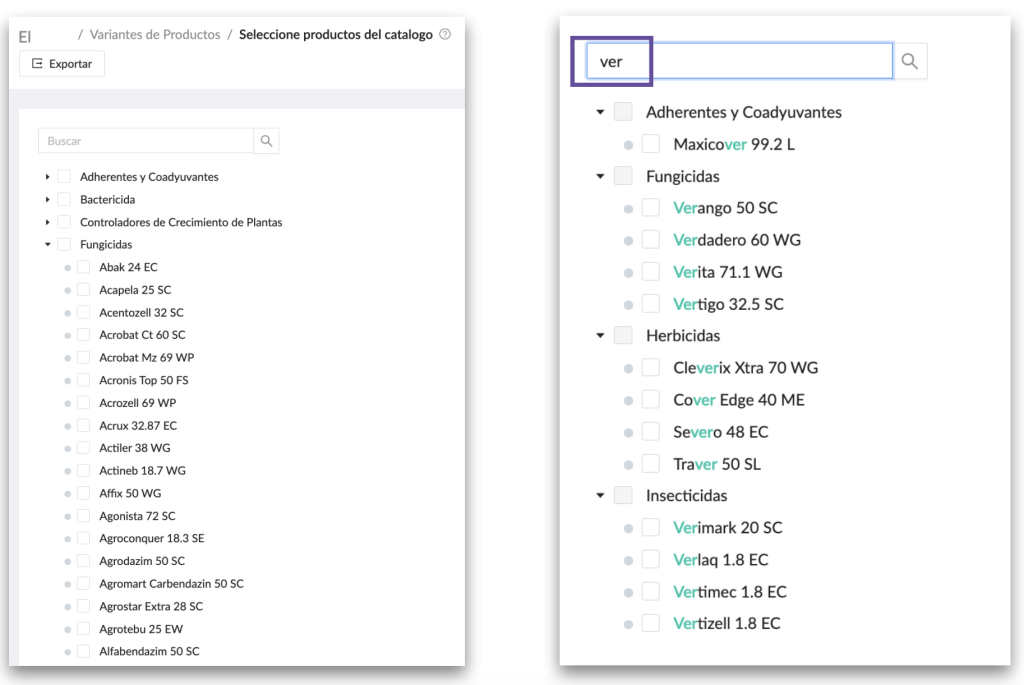
Select the products you want to create. On the confirmation screen, review them and click Create selected products to finish.

b) Create a new product
Section titled “b) Create a new product”To create or add a product to the list, click the blue “+ Create new” button. You will be taken to a form to enter the product information.
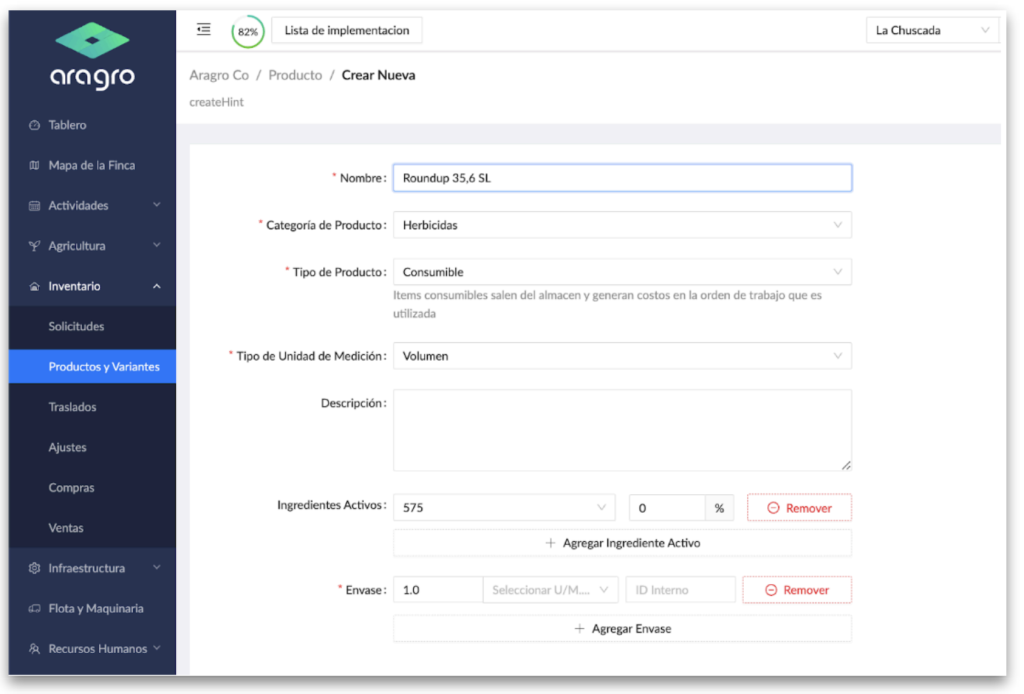
Note: Fields marked with an asterisk (*) are required to continue to the next step.
- Name: Enter the commercial name or another name to identify the product.
- Product category: This is the product’s classification or group. It must already exist in the Categories form (
https://beta.aragro.com/item categorías). - Product type: Select one of three options:
- Consumable: A product that is used up. Using a consumable product deducts it from the warehouse and records a cost where it was used. Examples include fertilizers, herbicides, diesel, and food.
- Reusable: A product that can be assigned to a work order without being consumed. Reusable products leave the warehouse and are returned after use. Examples include machetes, shovels, picks, and personal protective equipment.
- Produced: Finished products that come from a harvest order or from being processed in a processing order, such as parchment coffee, oro bruto, or fermented cacao.
- Unit type: Select whether the product is volume (liquid), weight (solid), or unit-based.
- Active ingredients: This applies only to products in the Agricultural inputs category. Active ingredients are the product’s chemical composition or active ingredient. A product can have one or more active ingredients; enter the weight percentage for each.
c) Import
Section titled “c) Import”
To import categories using an Excel template, see the import manual.
Edit products
Section titled “Edit products”To edit a record, select it in the list. A side menu appears on the right, with a pencil icon at the upper right. Editing activates all fields available for changes. If the product has transactions, you cannot change its type or unit of measure.
Export
Section titled “Export”You can export the list of products and variants in two formats: Excel (.xlsx) and comma-separated (.csv).
Filters
Section titled “Filters”You can filter the Products and Variants table by different criteria, such as categories, product type, or active ingredients.
If you have a question this guide does not answer, contact us in the Aragro chat and we will be happy to help.