Guide
Crop cycles
Organize activities, resources, costs, and productivity by crop cycle.
Leer en español →Notice: This article describes features included in the Cosecha plan. Some features may not be available to users on the Semilla or Cultivo plans. Compare plans.
In Aragro, you can manage crop cycles to keep track of all activities, resource use, costs, and productivity for a production cycle. Each crop cycle is for managing one crop; if you manage multiple crops, you can have more than one cycle open at a time.
- To access this section, open the menu on the left in the Agriculture module or the general menu at the upper right: https://app.aragro.com/agro/crop-cycles.
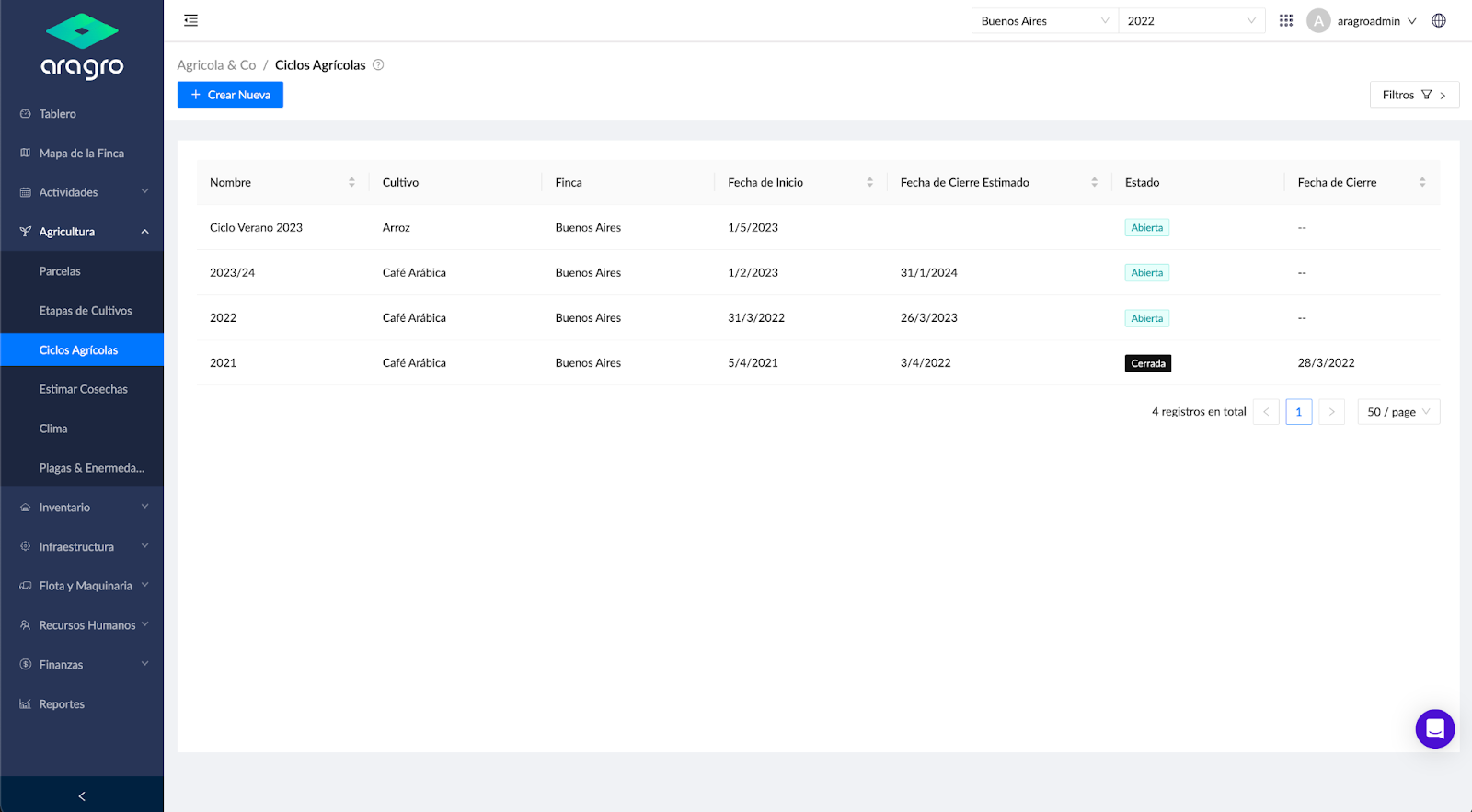
Initially, you can see the list of previously registered crop cycles. Each cycle includes its crop, farm, start date, estimated closing date, status, and final closing date.
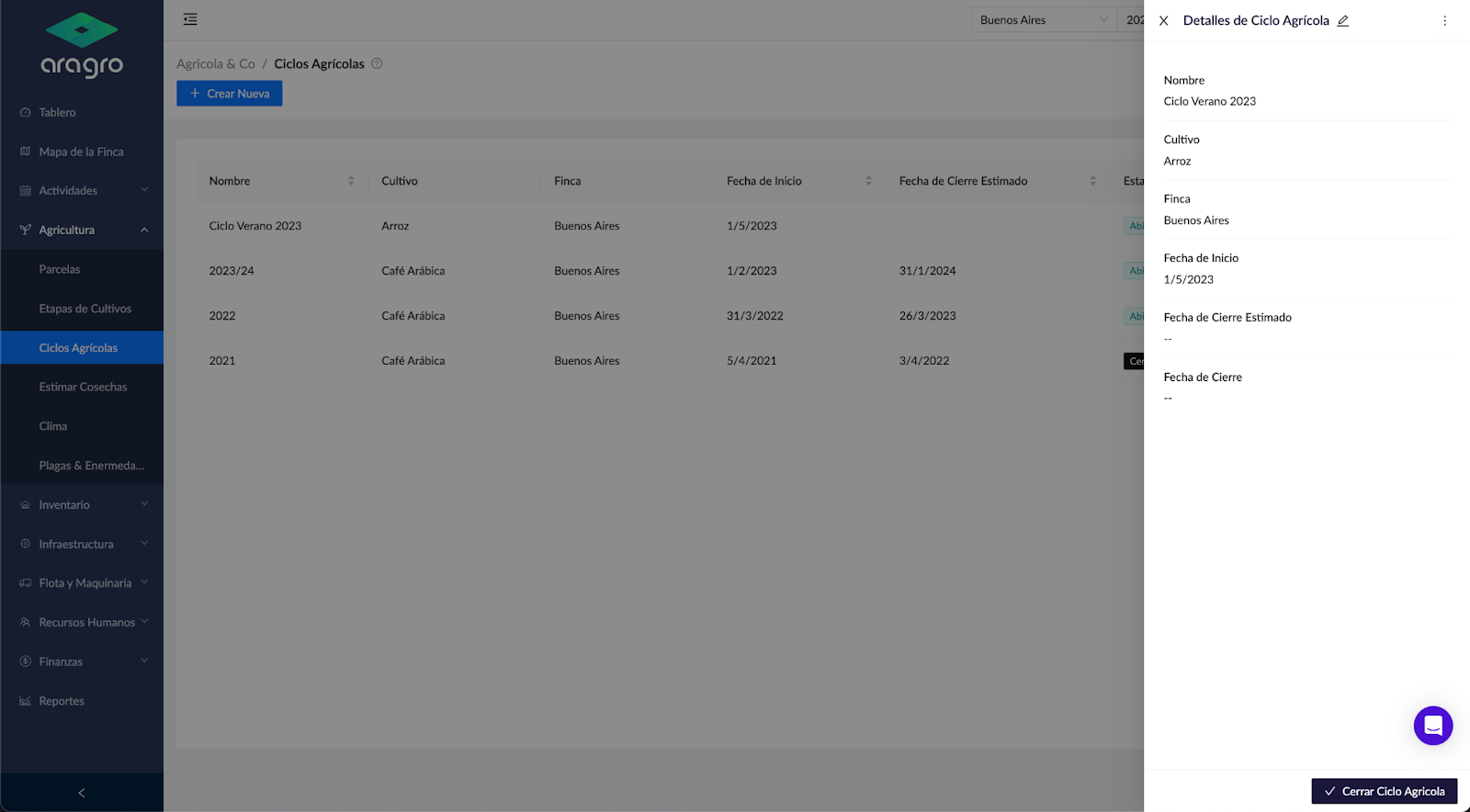
To edit a cycle, click its name. A menu opens on the right; click the pencil icon to edit the cycle.
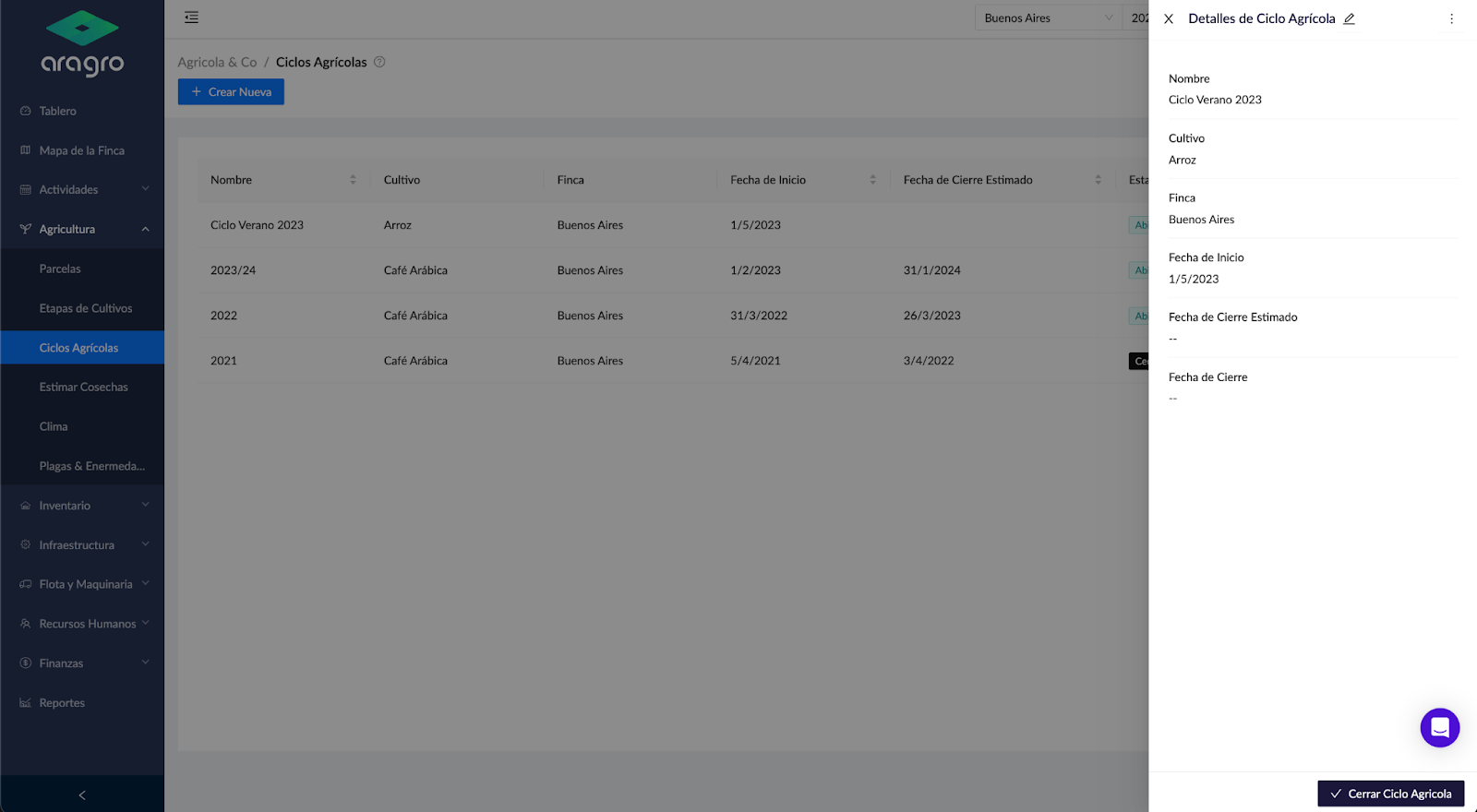
- In Crop cycles, you can create a new cycle, close a cycle you have already created, or filter the list to find the information you need.
Create a new crop cycle
Section titled “Create a new crop cycle”To create a new crop cycle, click the blue “+ Create new” button. A form opens in a panel on the right. Complete the basic information and click Create.
- Crop: This field is preloaded with the names of common crops registered in Aragro. If your crop does not appear, you can create it on the Crops page: https://app.aragro.com/agro/crops. If you have difficulty creating your crop or it does not appear, contact your administrator or technical support.
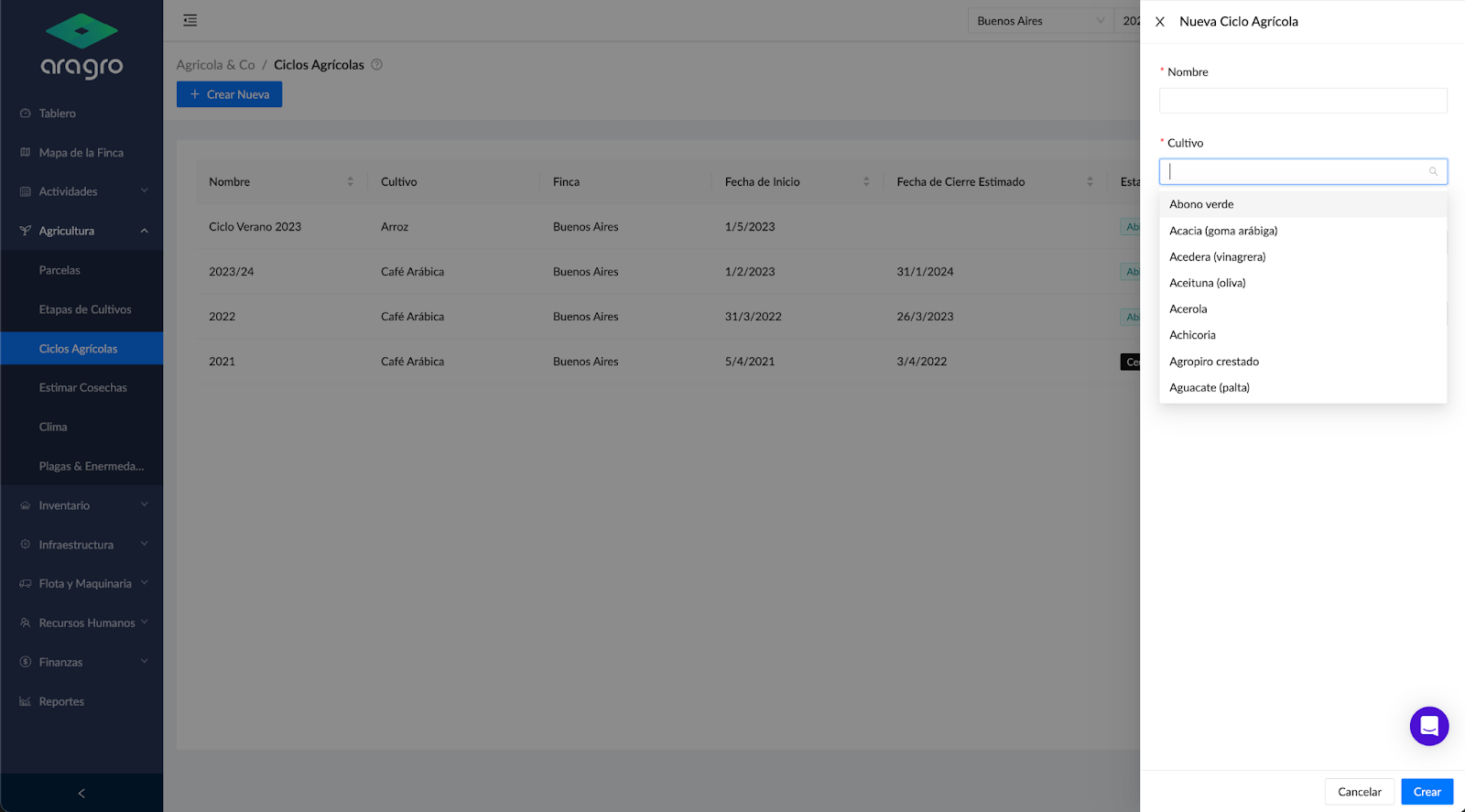
Note: Fields marked with an asterisk (*) contain information required to continue to the next step.
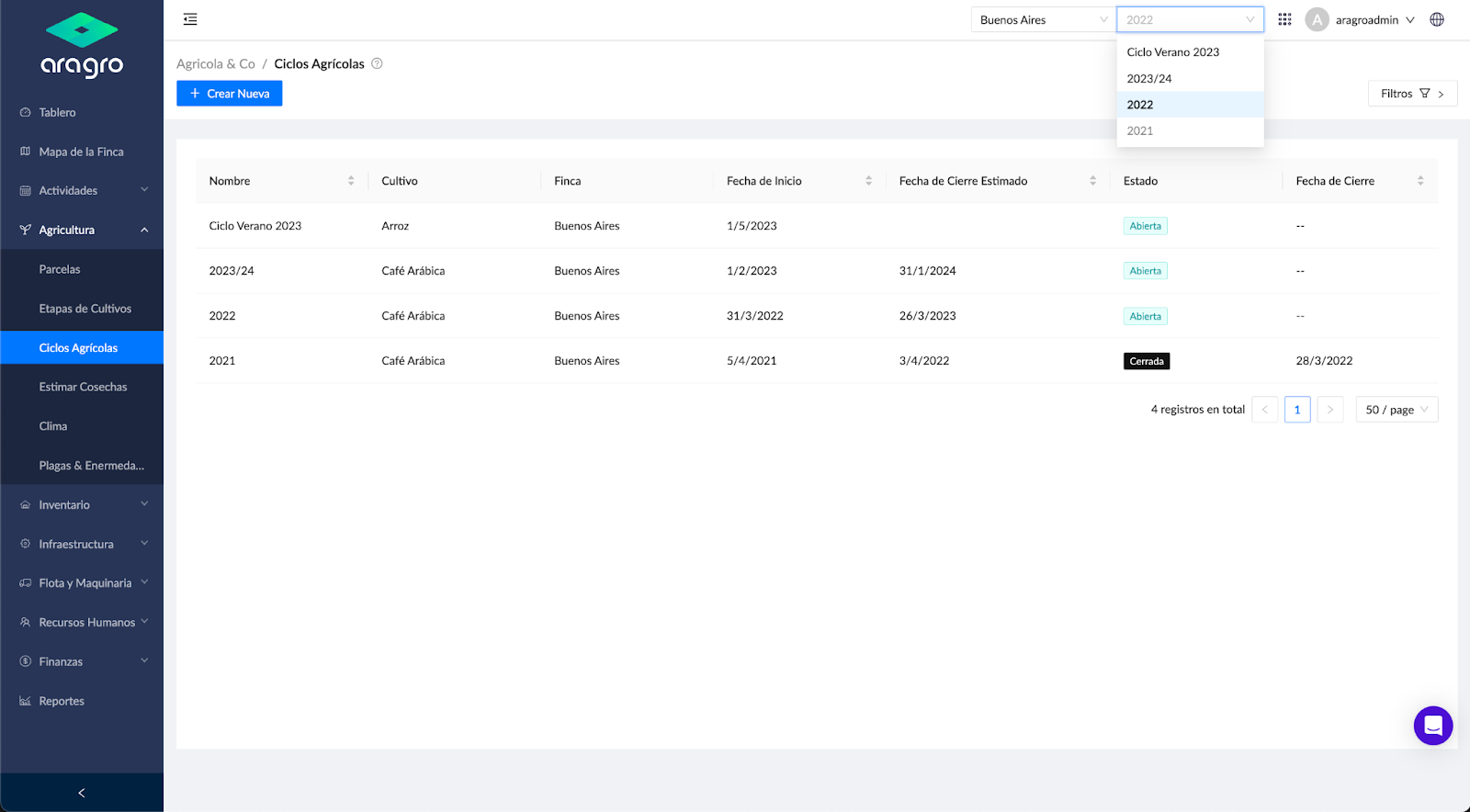
Once the crop cycle is created, you should see it in the list and in the system selector at the top, where you select farms and cycles.
Close a crop cycle
Section titled “Close a crop cycle”To close a crop cycle, select it from the list. In the side menu that appears on the right, click “Close crop cycle.”
Note: You can reopen a closed crop cycle. Open the cycle details and click “Reopen.”