Guide
Create an agricultural activity
Create activity categories and activities, then configure their measurement, resources, and pay rules.
Leer en español →Notice: This article describes features included in the Cosecha plan. Some features may not be available to users on the Semilla or Cultivo plans. Compare plans.
Activities help you manage farm operations. Use them to plan work, categorize costs, and track resources such as labor, inputs, and machinery.
Activities are grouped into categories. For example, weeding, herbicide application, and carilla are activities in the Weed control category.
This guide explains how to create activities in two parts:
- Activity categories
- Activities
Activity categories
Section titled “Activity categories”Activity categories group similar activities, such as pest and disease control, fertilization, harvesting, and repairs and maintenance. This groups the resources, costs, and effort associated with each activity to make data easier to analyze.
Aragro comes with a list of preloaded categories. Review them and create new ones, if needed, from the Activity categories button on the Activities page at https://app.aragro.com/agro/activities.

To create a category, click “+ Create new” and enter its name.
Activities
Section titled “Activities”Activities are the work a farm performs during a crop cycle. Most are agricultural, but you can also create activities for farm administration—such as security, gardening, and feeding—or asset management, such as machinery maintenance and infrastructure construction.
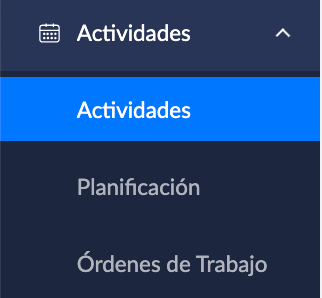
You can find Activities in the Activities module in the left sidebar or in the Administration menu at the upper right.
There are three ways to create activities.
Option 1: Choose activities from the catalog
Section titled “Option 1: Choose activities from the catalog”Click Activity catalog to browse activities organized by category and select the ones you want to create.
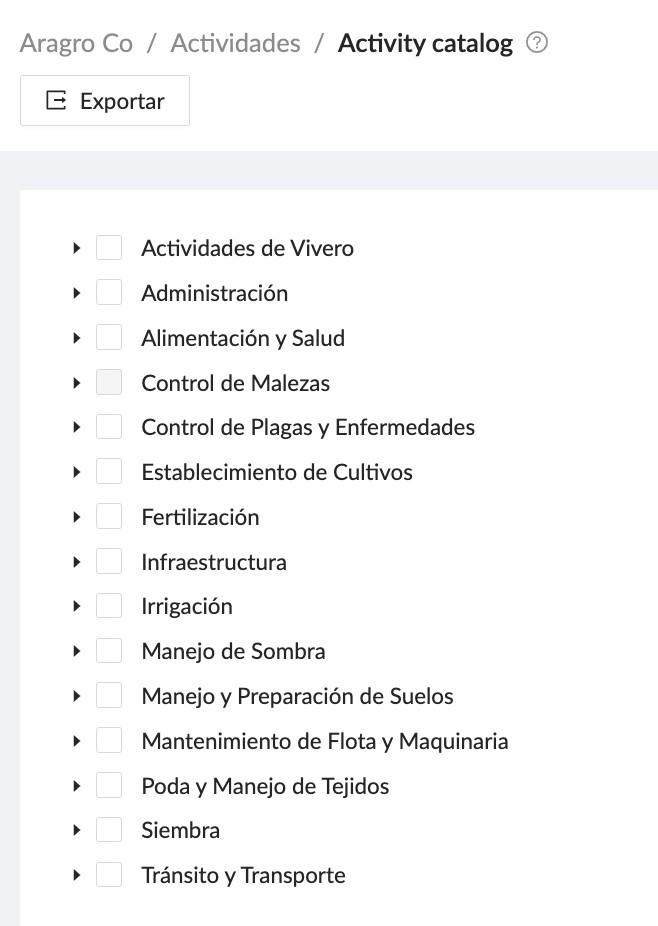
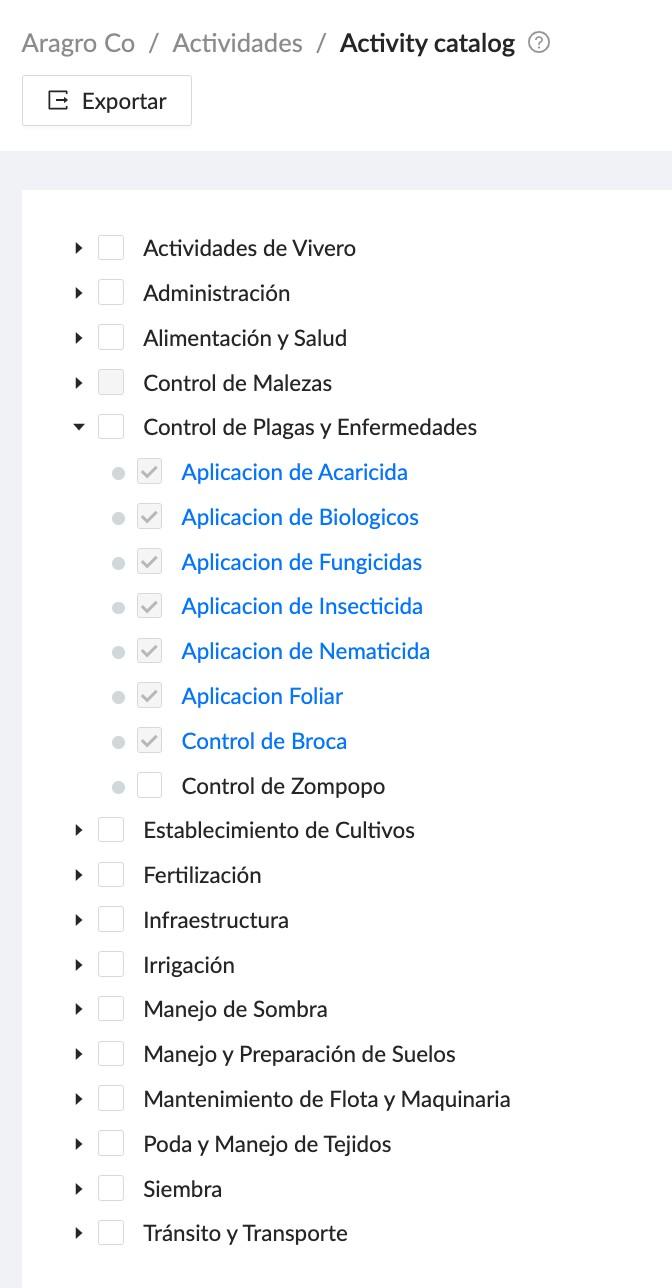
Select the activities you want, then click Create selected activities.
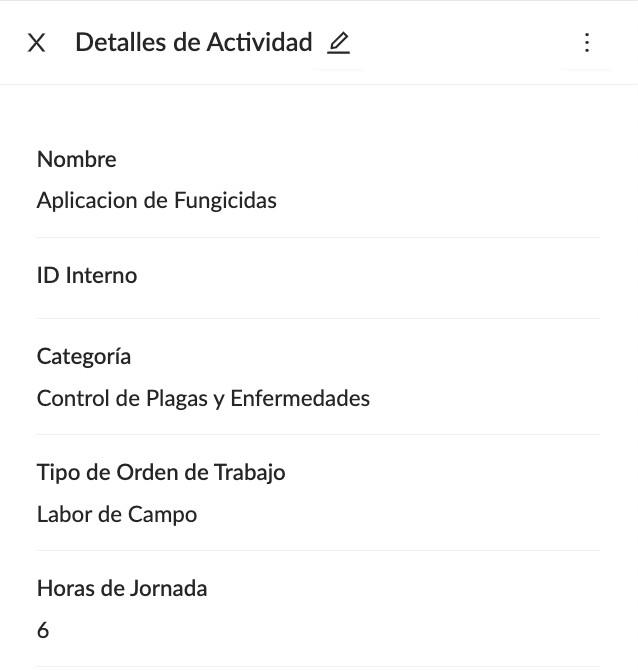
After creating an activity, you can edit it—for example, to change its name. Click the activity to open the side panel, click the pencil icon, and edit the desired information in the form.
Option 2: Create a new activity
Section titled “Option 2: Create a new activity”On the Activities page at https://app.aragro.com/agro/activities, click the blue “+ Create new” button to open the activity form.
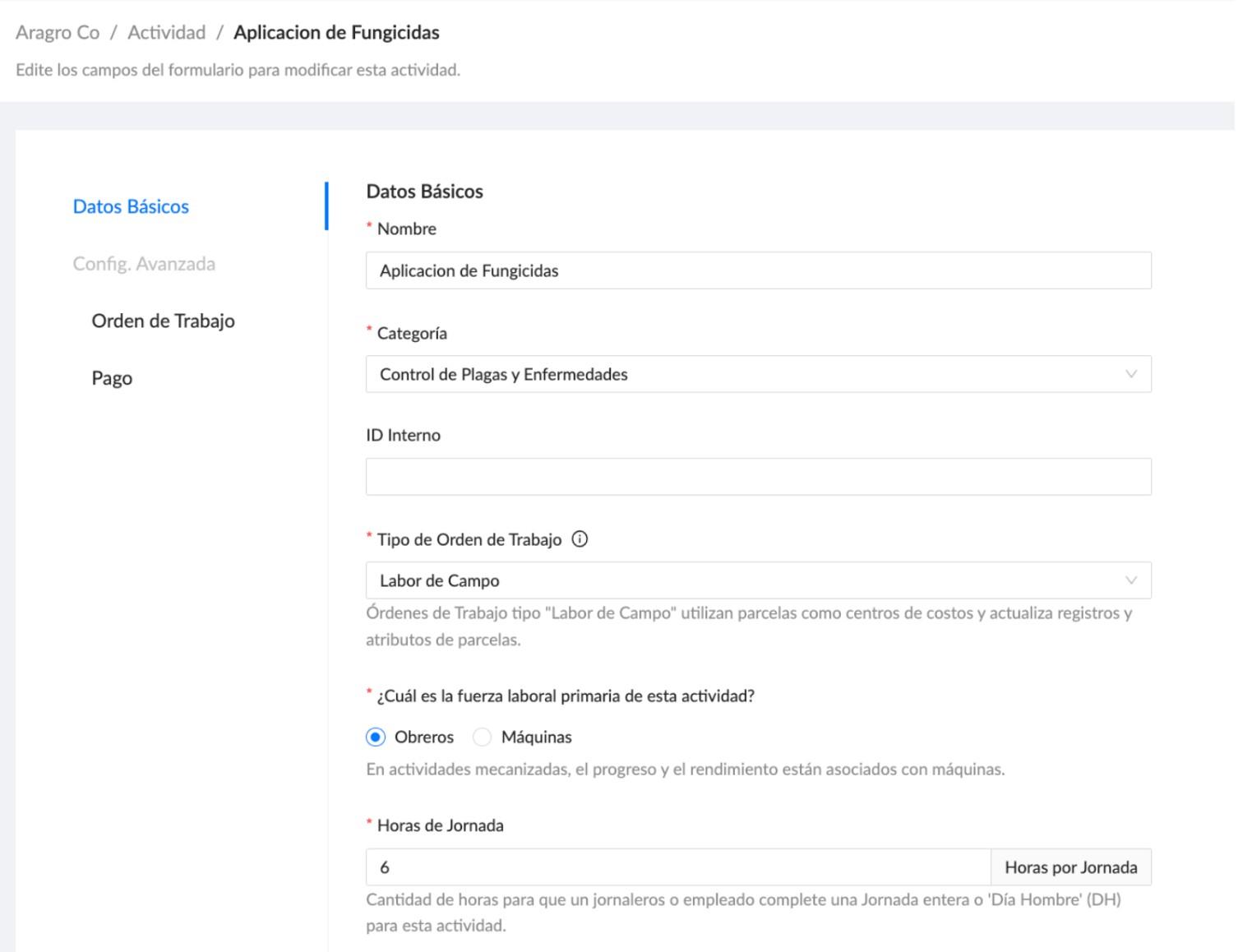
Fill in the activity information:
- Name: The activity name.
- Category: The classification or group the activity belongs to.
- Internal ID: Optional; use it, for example, if you have a code for your work.
- Work order type: Defines the type of work order in which the activity will be used. For example, fertilizing, pruning, or applying fungicides are agricultural work orders for field work.
- Primary workforce for this activity: Choose whether the activity is manual (workers) or mechanized (machines).
- Workday hours: The number of hours for this activity that equals one person-day. Work orders for the activity calculate person-days from the hours worked and workday hours. For example, eight hours worked on an activity with an eight-hour workday equals one person-day.
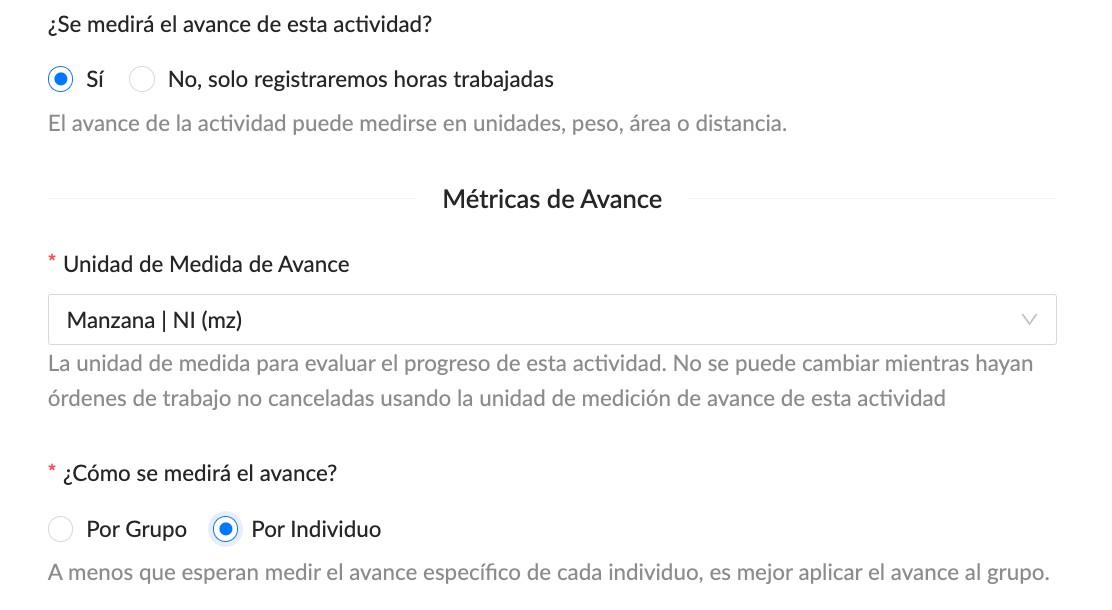
To finish creating the activity, choose whether to measure its progress. Measuring progress means recording the amount of work completed in a work order—for example, the area sprayed, plants planted, or meters of road repaired.
If you do not measure an activity’s progress, its work orders track only resource use, such as labor and inputs.
If you do measure progress, click Yes, choose the unit of measure, then choose whether progress is recorded for the whole crew (by group) or for each worker individually (by individual).
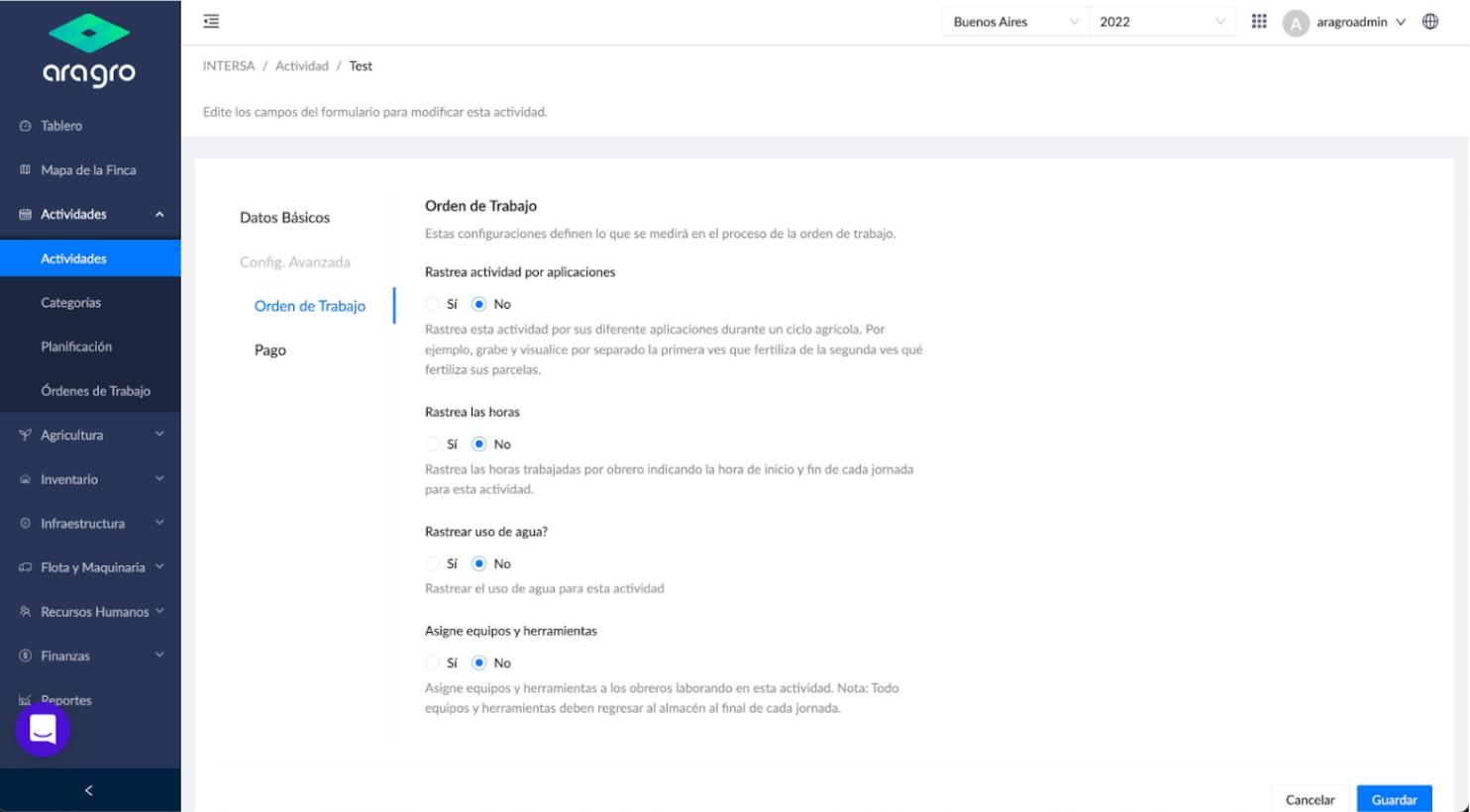
After creating an activity, you can review its advanced settings.
1. Work order: Configure the options available in the work order:
- Track activity by application: Select Yes to record each application or pass in a cycle separately—for example, Fertilizing #1, #2, and #3. If this option is No, the activity is recorded as one general activity (for example, Fertilizing).
- Track hours: Records workers’ start and end times for each work order. If this is No, the same worker cannot be used on two different work orders on the same day. To do so, enable this setting and ensure the worker’s hours do not overlap between work orders that day.
- Track water use: Lets you measure water use in a work order; useful for activities such as irrigation or processing.
- Assign equipment and tools: Lets you assign equipment and tools to workers in the work order to manage their use.
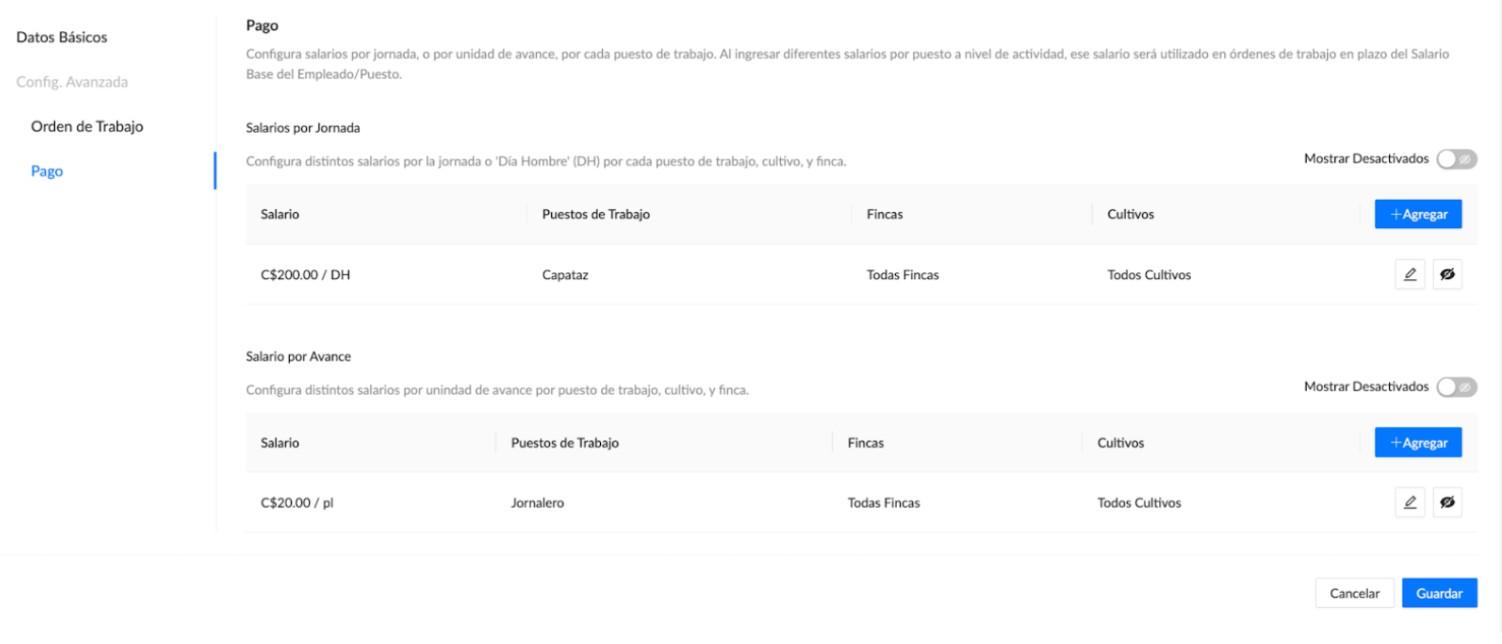
2. Payments: Create a payment rule or exception for employees working on this activity. The rule takes priority in the work order over the salary configured in the employee’s profile. There are two options:
- Pay per workday: Define a workday salary by job position that applies only to this activity. If an activity has a different rate, set the rule here rather than changing the employee’s profile.
- Pay by progress (piecework): Define a payment by job position based on the amount of work completed, rather than days or hours worked. The progress payment must use the same unit of measure as the activity. For example, if the activity is measured in plants, pay by plants.
Option 3: Import
Section titled “Option 3: Import”To import activities using an Excel template, see the import guide.
If you have a question this guide does not answer, contact us in the Aragro chat and we will be happy to help.