Guide
Bulk data import guide
Import multiple records at once with Aragro’s Excel template.
Leer en español →Notice: This article describes features included in the Cosecha plan. Some features may not be available to users on the Semilla or Cultivo plans. Compare plans.
Aragro lets you import information instead of entering records one at a time.
This saves time and lets you process several records at once with our smart Excel importer.
Steps to import a file
Section titled “Steps to import a file”Follow these steps to import your files quickly and easily:
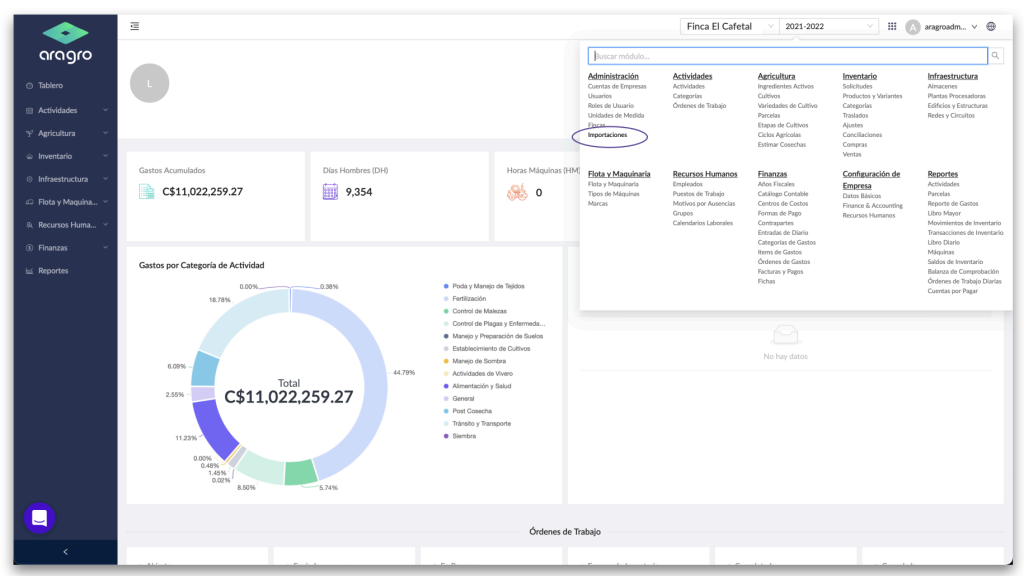
- Sign in to your account and go to the upper right. Click the grid icon to open the menu, then click “Imports” under Administration. This takes you directly to the Imports page.
- Click the blue “+ Create new” button, then select the module the import belongs to, the language, and the type of import you want to perform.
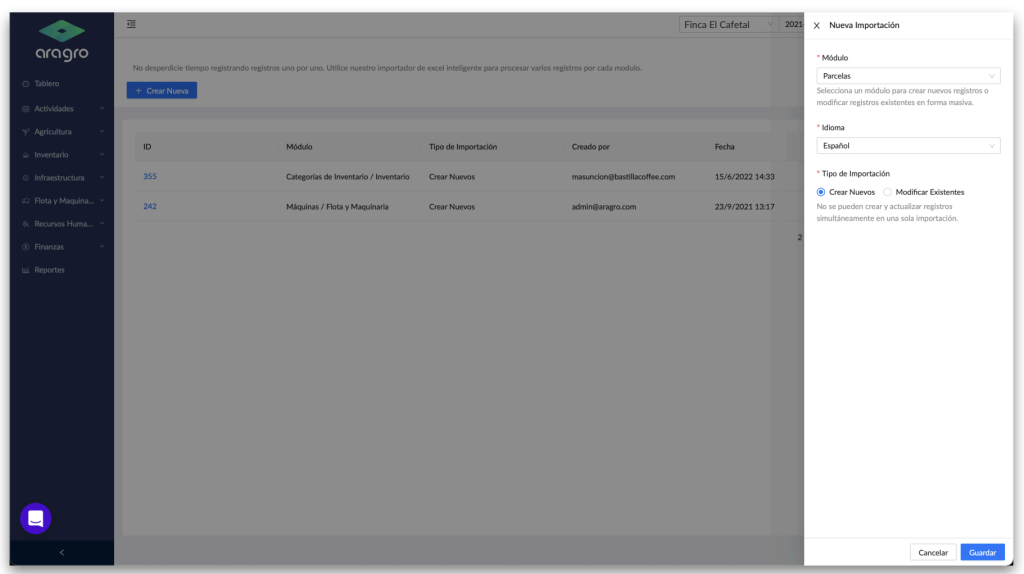
Note: Select the correct module, because each module has a different template.
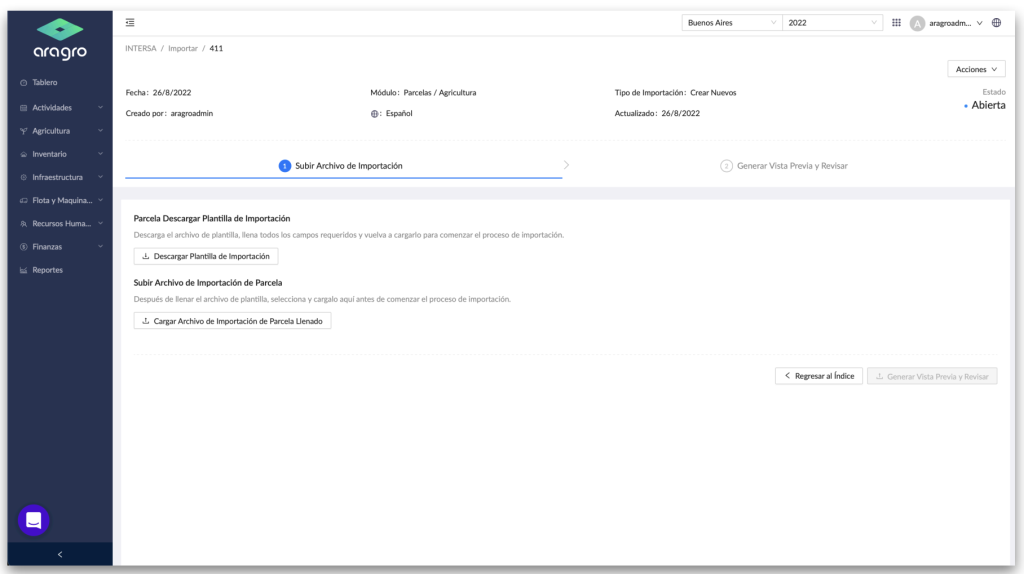
- Download the import template, fill in all required fields, and upload the completed file.
- After you upload the file, the system checks that it is formatted correctly. If it is not, a list of errors appears for you to correct before uploading the file again. If there are no errors, a notification confirms that the process succeeded.
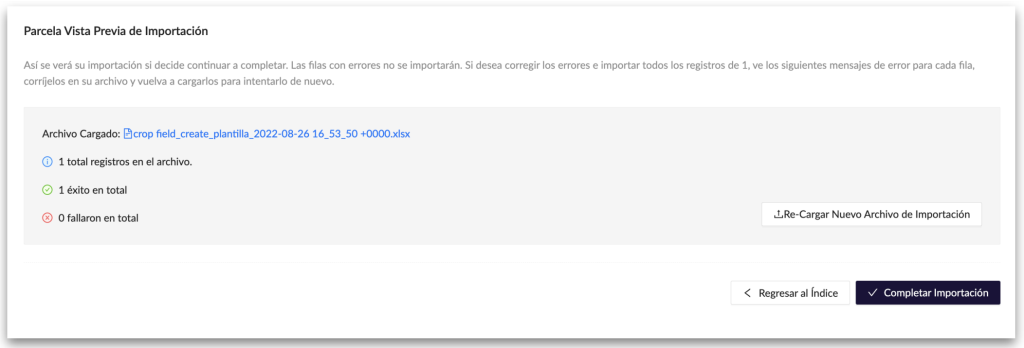
Note: If something is misspelled or you enter something in the template that is not already registered in your account—for example, a farm name that Aragro does not recognize—an error appears for you to correct.
- After this step, go to the relevant module and check that the information was imported.
Example of a template to download:
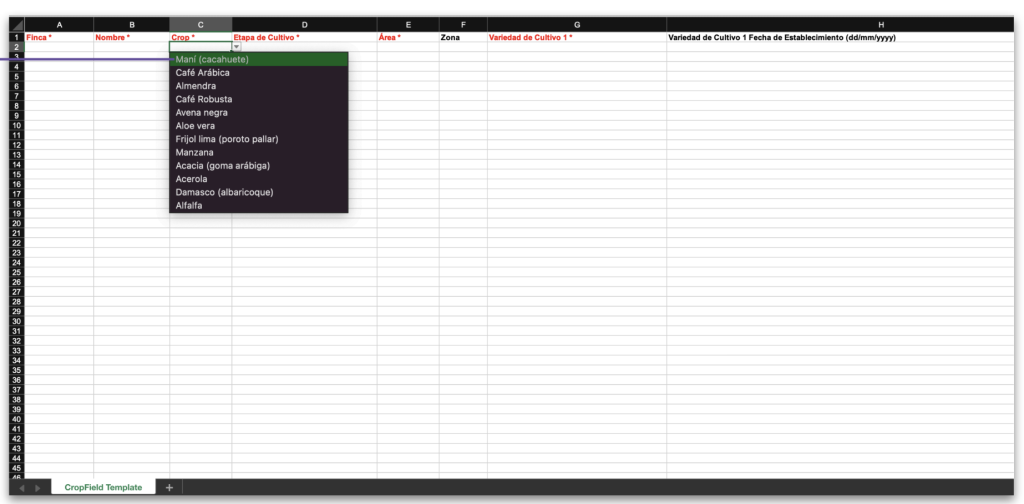
Our template includes preconfigured options in drop-down cells. The available options are based on records you have already entered on the platform.
Keep in mind
Section titled “Keep in mind”- You can import directly from the module you are working in. For example, to import information for Plots, go to the page where you register plots, click “Import plots,” and follow the same steps in this guide.
- You can modify an existing file: download the template to get an Excel file containing all existing records for that module. You can then modify certain fields; if there are restrictions, the file will indicate them.
If you have a question this guide does not answer, contact us in the Aragro chat and we will be happy to help.